How to add an Email Signature to Outlook
How to add an Email Signature to Outlook.
Last updated: May 5, 2021
In the following, we will show you how to add an Email Signature to Outlook.
-
Open a new email in Outlook.
-
Click on “Message” at the top, then on “Signature” and finally on “Signatures”.
-
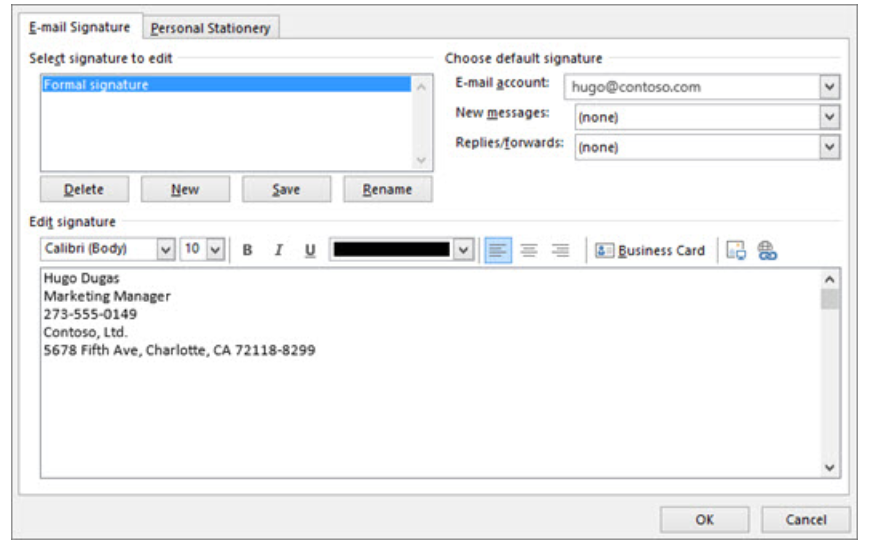
Select the option “Select signature to edit”, then go to “New” and enter a name for this new signature.
-
Then log in to https://app.reviewforest.org, click on “Email Signature” and on “Copy Signature” (option 1 or 2) and paste it in Outlook under “Edit Signature”.
-
Select the email address for which the signature should be displayed in the “Email account” drop-down menu under “Choose default signature”.
-
Click on “OK”, and your signature is ready.