How to add an Email Signature to Thunderbird
How to add an Email Signature to Thunderbird.
Last updated: May 5, 2021
In the following, we will show you how to add an Email Signature to Thunderbird.
-
To add an email signature to Thunderbird, first click on “Compose” to write a new message.
-
Now visit our website https://app.reviewforest.org/ and log in.
-
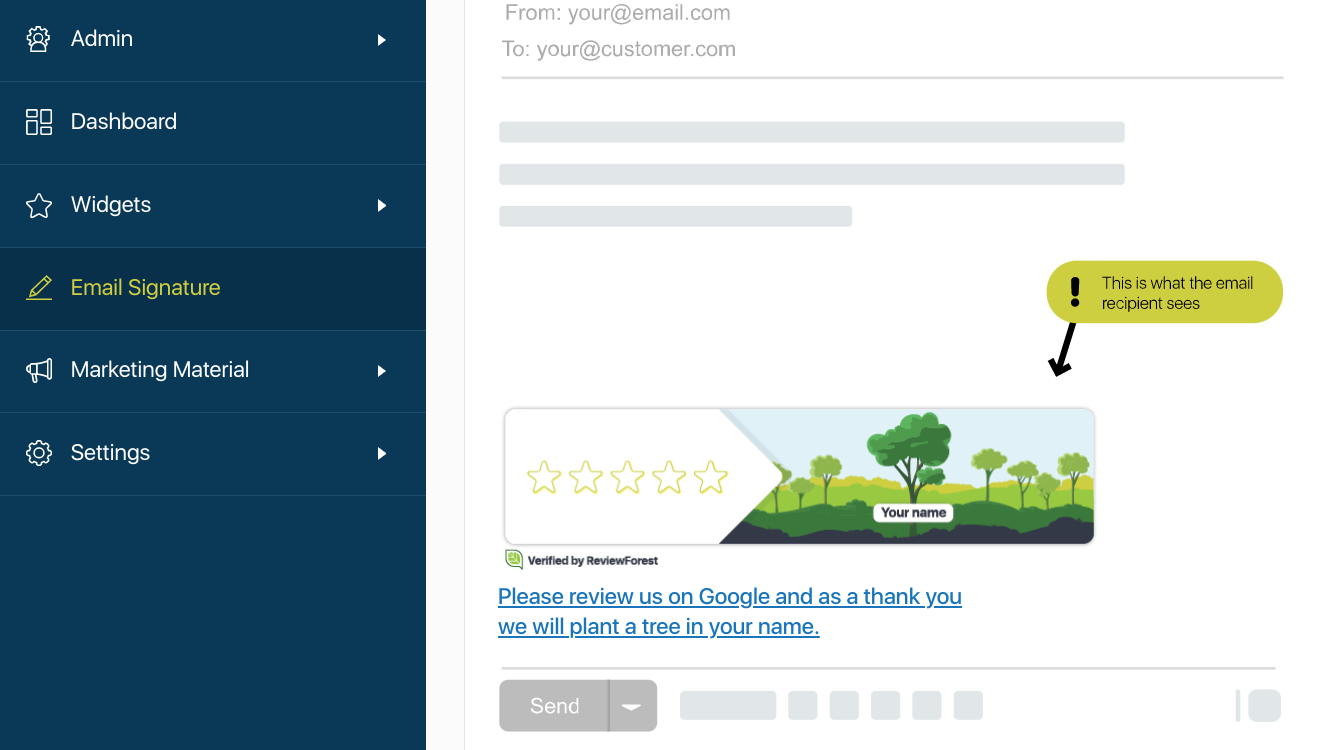
Click on “Email Signature” on the left and copy one of the two signatures by clicking on “Copy Signature”.
- Go to the page https://html-online.com/editor/, copy the copied signature into the left field. It then appears as HTML code in the right field.

- Now copy the HTML code and paste it into the Thunderbird message window.
Of course, you can also save the signature directly in your settings:
-
Click with the right mouse button on your mail account in the upper left corner and select “Settings” from the menu that appears.
-
Under your existing signature text, insert the signature copied from ReviewForest as HTML code under “Attach the signature from a file instead”.
-
Then click on “OK” and your email signature is ready. It will now be displayed under every email.