
How to add an email signature to Outlook
With a ReviewForest email signature, every email you send links to your review forest. Here’s how to create it in the app and add it to Outlook.
1. Create and copy your signature
Section titled “1. Create and copy your signature”-
Log in and open Review invitations under Marketing in the menu on the left. On the Email signature card, click Install email signature.
-
Click Create email signature. If a short explanation appears first, click Try it now. If you already have a signature, click New email signature at the top right, or click the copy icon next to an existing signature in the list and skip to part 2.
-
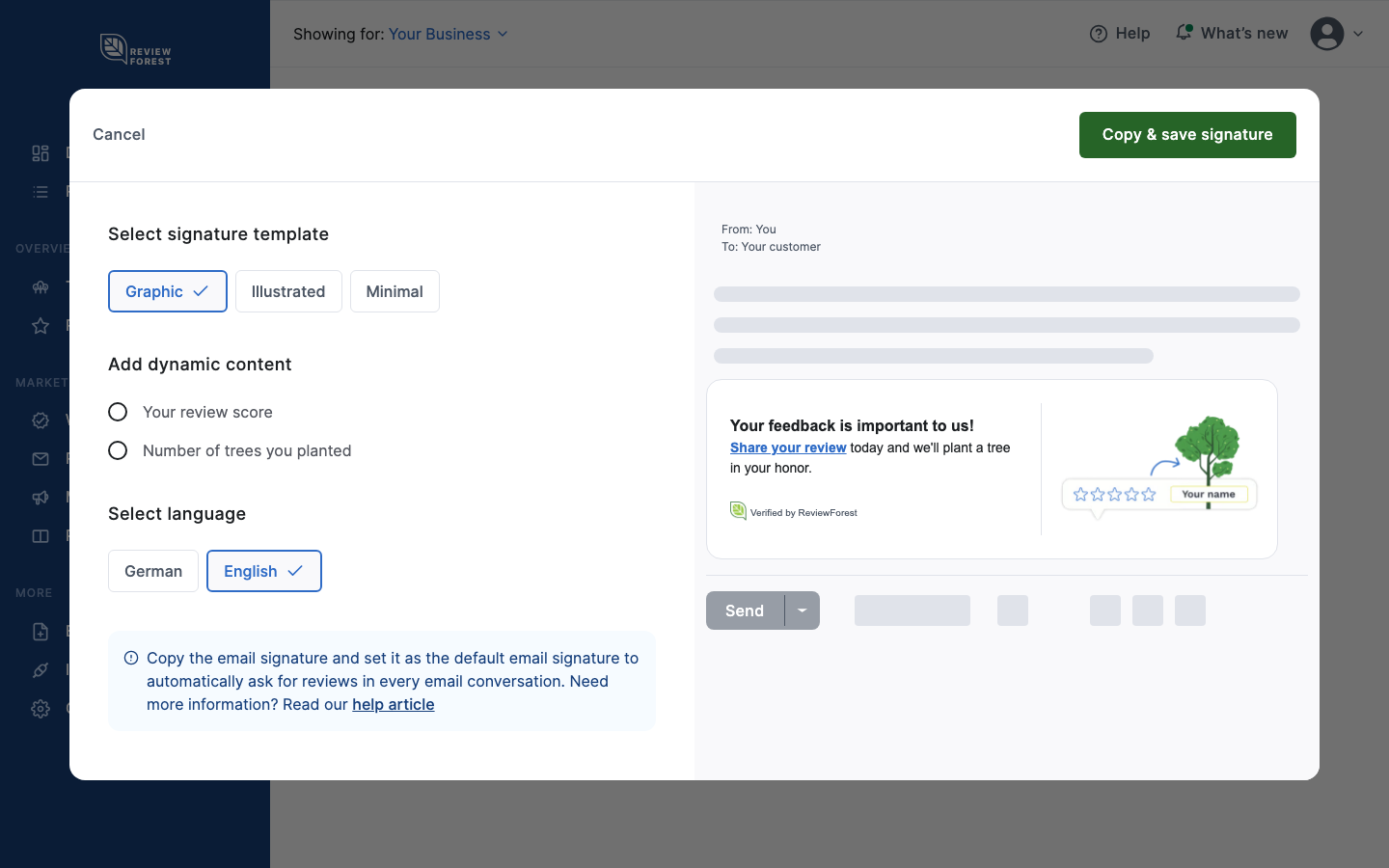
Choose a template (Graphic, Illustrated or Minimal) and the language. For a German signature you also choose between Formal and Informal address. Under Add dynamic content you can show your review score or your number of planted trees in the signature, except on older plans.
-
Click Copy & save signature. The signature is now on your clipboard and saved in your list.
2. Add the signature to Outlook
Section titled “2. Add the signature to Outlook”Outlook comes in several versions. On Windows: if there’s a File tab at the top left, you’re using classic Outlook. Otherwise follow the steps for the new Outlook and Outlook on the web. On a Mac, see the last section.
Classic Outlook for Windows
Section titled “Classic Outlook for Windows”-
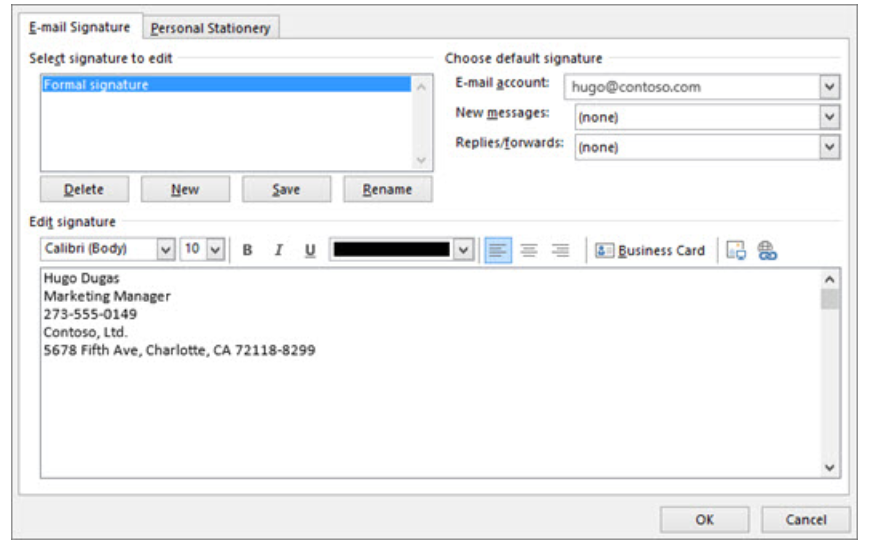
Open a new email. On the Message tab, click Signature, then Signatures.
-
Under Select signature to edit, click New and enter a name for the signature.
-
Click into the Edit signature box and paste your signature with Ctrl+V.
-
Under Choose default signature, pick your email account and choose the signature for New messages and, if you like, for Replies/forwards.
-
Click OK.
New Outlook and Outlook on the web
Section titled “New Outlook and Outlook on the web”-
Click the gear icon at the top right to open the settings, then Accounts and Signatures.
-
Click Add signature and enter a name. In some versions the button is called New signature.
-
Paste your signature into the box with Ctrl+V (on a Mac: Cmd+V).
-
Choose whether Outlook adds the signature to new messages, to replies and forwards, or both.
-
Click Save.
Outlook for Mac
Section titled “Outlook for Mac”-
In the menu bar, choose Outlook → Settings, then Signatures under Mail.
-
Click the plus button (+) and enter a name for the signature.
-
Paste your signature into the editor with Cmd+V.
-
Close the window. Under Set default signature you can choose the signature for new messages and for replies and forwards.
Write yourself a test email to check how the signature looks.