
Replying to reviews
For reviews that have a tree planted, ReviewForest writes you a suggested reply. You’ll find it in the app, in the Suggested reply box.
That box only has a publish button for Google reviews, and only if your Google Business Profile is connected to ReviewForest through Google sign-in. In every other case you copy the text and paste it on the review platform yourself.
Where to find the suggested reply
Section titled “Where to find the suggested reply”-
Log in and open Reviews in the menu on the left.
-
If you have several review forests, pick the right one at the top, next to Show reviews for.
-
Below the review text you’ll see the Suggested reply box with a text field. You can edit the text in it freely.
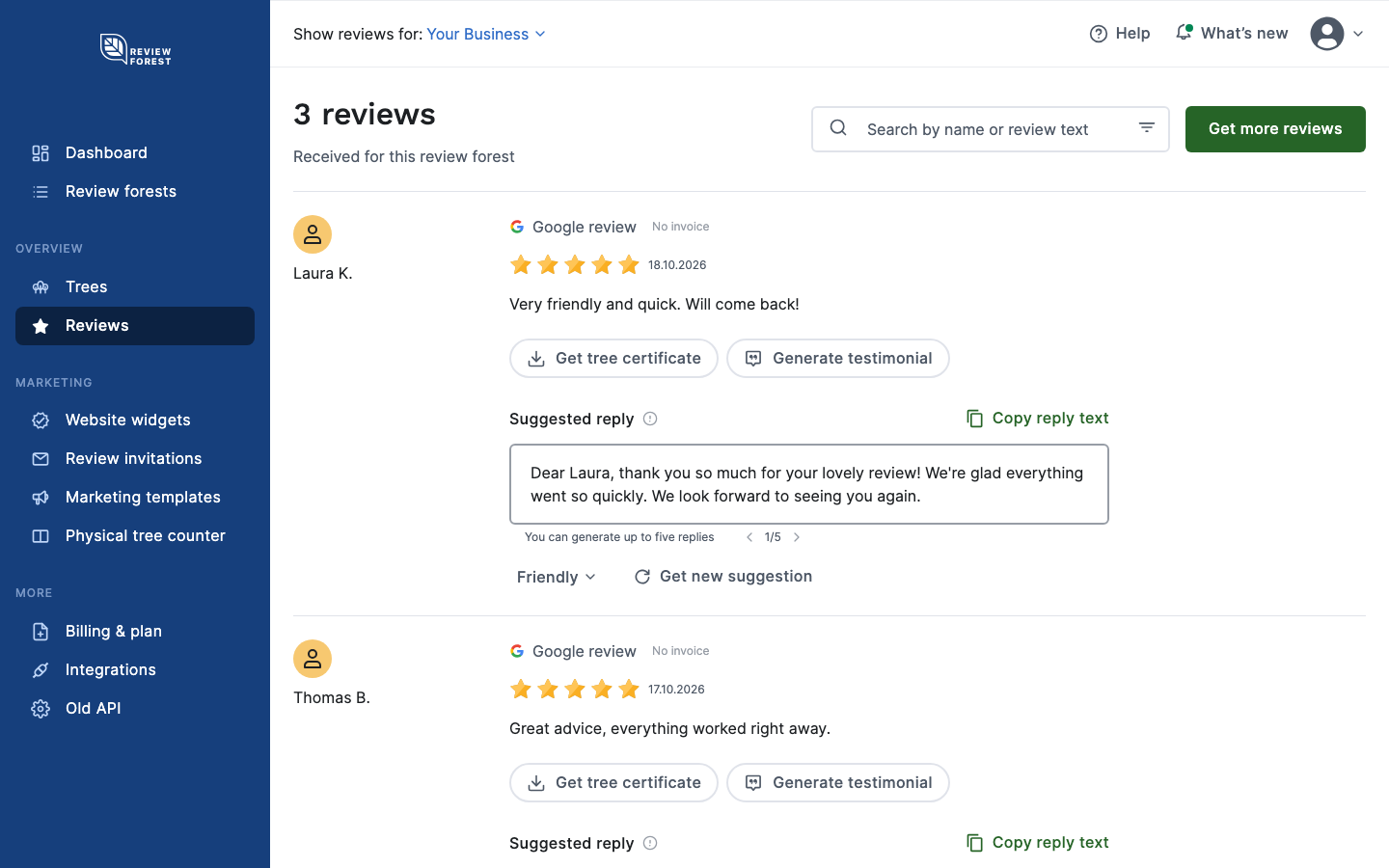
Reviews without a tree don’t have the box. You can plant trees for older reviews later on, see How to Plant Trees for Previous Reviews. ReviewForest writes the suggestion after the tree has been planted. For a brand-new review, the box can therefore show up a little later than the review itself.
Our email notification about new reviews can include a suggested reply too. You can only copy or publish it in the app, not from the email.
Change the tone and get new suggestions
Section titled “Change the tone and get new suggestions”The first suggestion is written in the Friendly tone. Below the text field you can choose a different one: Curious, Professional, Informal, Cooperative or Friendly. Get new suggestion then writes a new suggestion in that tone.
- You get up to five suggestions per review. The first one, which is already there when you open the review, counts as one of them.
- You can flip between the suggestions. Use the arrows next to the counter below the text field, for example 2/5.
- The app doesn’t save your edits to the text field. Copy or publish your text before you leave the page or flip to another suggestion.
Publish or copy
Section titled “Publish or copy”At the top right of the box you’ll see one of two buttons. Which one depends on where the review comes from:
| The review comes from | Button | What happens |
|---|---|---|
| Google, with your Business Profile connected through Google sign-in | Publish reply | The reply appears on Google, below the review. |
| Google, connected through the address search | Copy reply text | You paste the text on Google yourself. |
| Another platform, for example Trustpilot | Copy reply text | You paste the text on that platform yourself. |
| ReviewForest Direct | Copy reply text | There is currently no public reply, see below. |
Publish reply
Section titled “Publish reply”When you click Publish reply, ReviewForest sends the text exactly as it stands in the text field to Google, as your business’s reply. The box then shows Reply Published. You don’t need to log in to Google for this.
If you see an error message instead of Reply Published, open Integrations in the menu on the left. If the Google Business Profile card reports a connection issue there, reconnect your Google account with the Reconnect button.
Copy reply text
Section titled “Copy reply text”Copy reply text puts the text from the text field on your clipboard. Then open the review on the platform it comes from and paste the text there as your reply. For Google, you do that in your Google Business Profile.
Reviews left through ReviewForest Direct
Section titled “Reviews left through ReviewForest Direct”Reviews that your customers leave directly through the form on your forest page currently have no public reply. Neither the forest page nor the widgets display replies. You still see the suggestion in the app, but there is no place in ReviewForest where you can publish it.
If you need this, write to us at mail@reviewforest.org.
Before activation and on the Grandfather plan
Section titled “Before activation and on the Grandfather plan”Until you’ve activated your ReviewForest subscription, the app shows only the first 50 characters of the suggestion. The same goes for the Grandfather plan. Below it you’ll see the Upgrade to view full reply button. In addition:
- The tone dropdown and Get new suggestion are hidden.
- Publish reply can’t be clicked.
- Copy reply text copies what is in the text field, so at first only the shortened suggestion.
The same applies while your review forest is deactivated, or once your subscription has ended after a cancellation. On the Standard, Premium and Professional plans, with an active review forest, you see the full suggestion.
If an invoice is unpaid, you can only publish replies again once it has been paid.
Connect Google so that you can publish
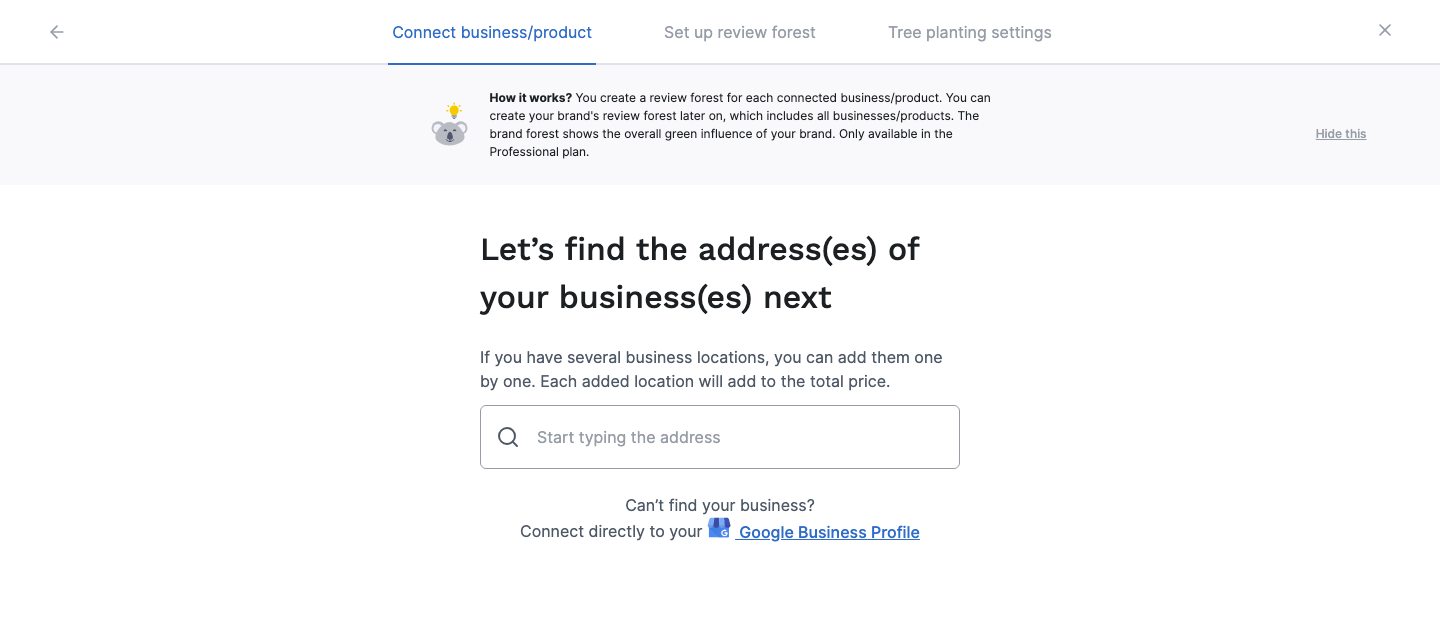
Section titled “Connect Google so that you can publish”When you connect Google to a review forest, you reach the Let’s find the address(es) of your business(es) next step. That happens when you add a new review forest or add another platform with Connect more. This step offers two ways, and only one of them gives you the Publish reply button:
- The address search, the large search field. ReviewForest then gets your reviews through Google Maps. With this connection you can only copy replies.
- The “Google Business Profile” link below the search field. It follows the sentence “Can’t find your business? Connect directly to your”. Here you sign in with Google, and after that you can publish replies directly.
To connect through the link:
-
In the Let’s find the address(es) of your business(es) next step, click the Google Business Profile link.
-
A notice explains which permission Google is about to ask for. Click Continue.
-
Sign in with the Google account that manages your Business Profile and allow access.
-
In the Select your business in your Google Business Profile window, select your business and click Continue.
-
Click Connect and follow the remaining steps on screen.
Your Business Profile has to be verified and published on Google. Listings that are missing either one are marked Unverified in the list and can’t be selected.
We use this access to load your Google reviews and to publish the replies you write in ReviewForest. We don’t edit your Business Profile.
Already connected through the address search? Request a switch
Section titled “Already connected through the address search? Request a switch”If Google is already connected to your review forest through the address search, you don’t have to disconnect anything. You request the switch in the app, and our team switches your review forest over.
-
Open Integrations in the menu on the left. If you have several review forests, pick the right one at the top first.
-
On the Google Business Profile card, click Request switch.
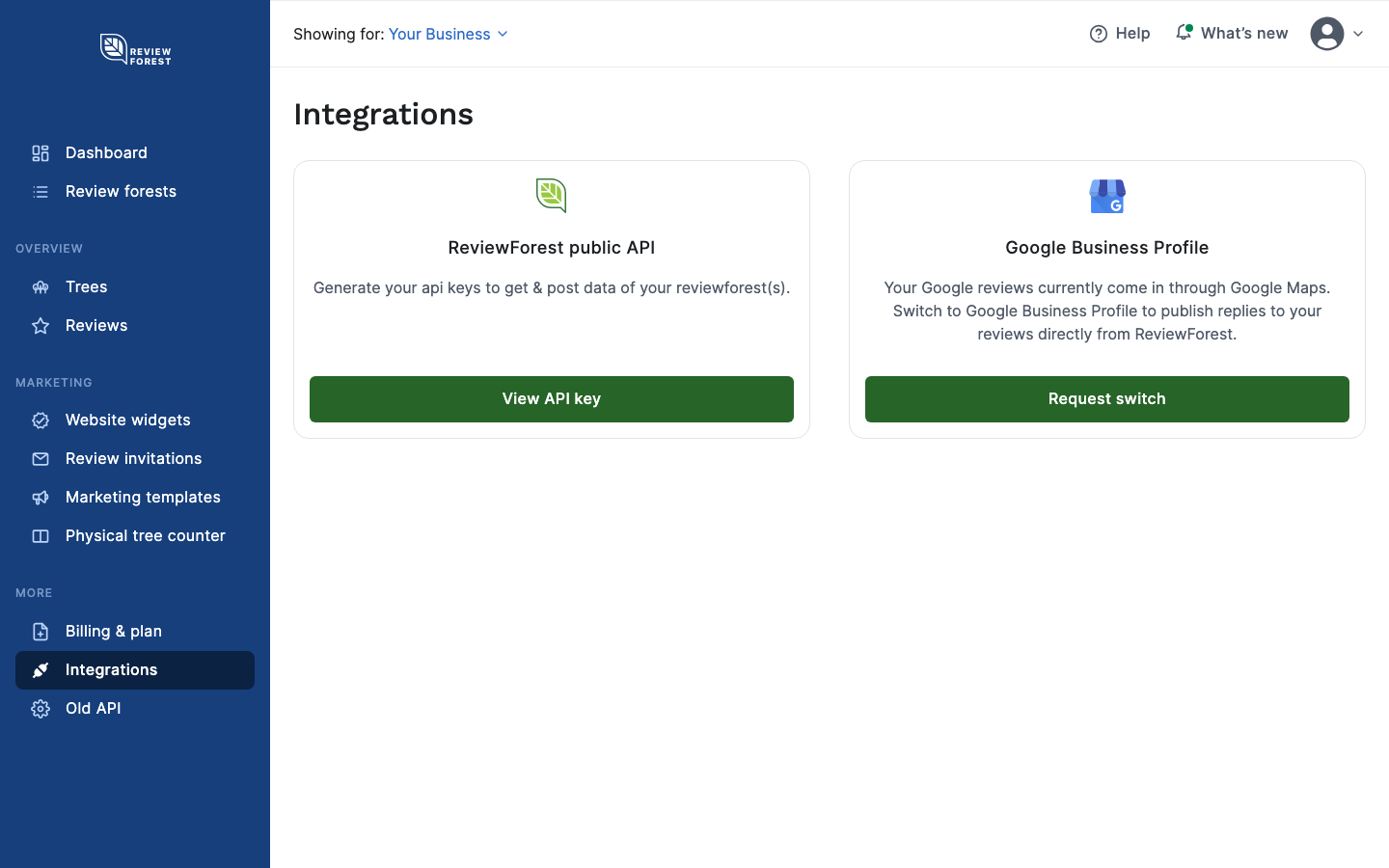
-
The Switch to Google Business Profile window explains how it works. Click Continue.
-
Sign in with the Google account that manages your Business Profile and allow access.
The button then reads Switch requested. Our team switches your review forest by hand and lets you know as soon as it’s done. Until then everything keeps working as before. Your review forest and your planted trees stay as they are.
Two messages can hold up the switch:
- “We could not find Your Business in this Google account.” Try again with the Google account that manages this Business Profile.
- “Google does not show Your Business as a verified business profile.” Check the profile on Google and try again afterwards.
If that doesn’t get you any further, write to us at mail@reviewforest.org.
If the card says Google Business Profile connected. with the Disconnect button below it, your Business Profile is already connected through Google sign-in. In that case you can already publish replies to Google reviews.