How to add another review forest to your account
A review forest belongs to one location or one product. If you run several locations, for example a dental practice in Berlin and another one in Munich, you can create a review forest for each of them in the same account.
Before you start
Section titled “Before you start”- Same business, more platforms? If you want reviews for the same business from several platforms, for example Google and ReviewForest Direct, don’t create a new review forest. Connect the platforms to your existing one instead: How to manage your review platforms.
- Costs: your subscription is billed per active review forest, so a review forest for another location costs one more plan fee. Review forests that only collect Amazon reviews are counted separately, and on the Professional plan they don’t add to the price at all. The trees are charged as usual.
- Your own link: every review forest gets its own address, for example
reviewforest.org/dental-berlinandreviewforest.org/dental-munich. The part after the slash can have 4 to 18 characters. - Planting project: you choose the planting project for each review forest separately. It can be the same one or a different one.
- Shared billing details: all review forests in an account share one billing address and one payment method. If you need different ones, set up a separate account with a different email address.
- All locations in one place: on the Professional plan, a Brandforest shows the reviews and trees of all your active review forests together: Brandforest: all your reviews in one place.
Add a review forest
Section titled “Add a review forest”-
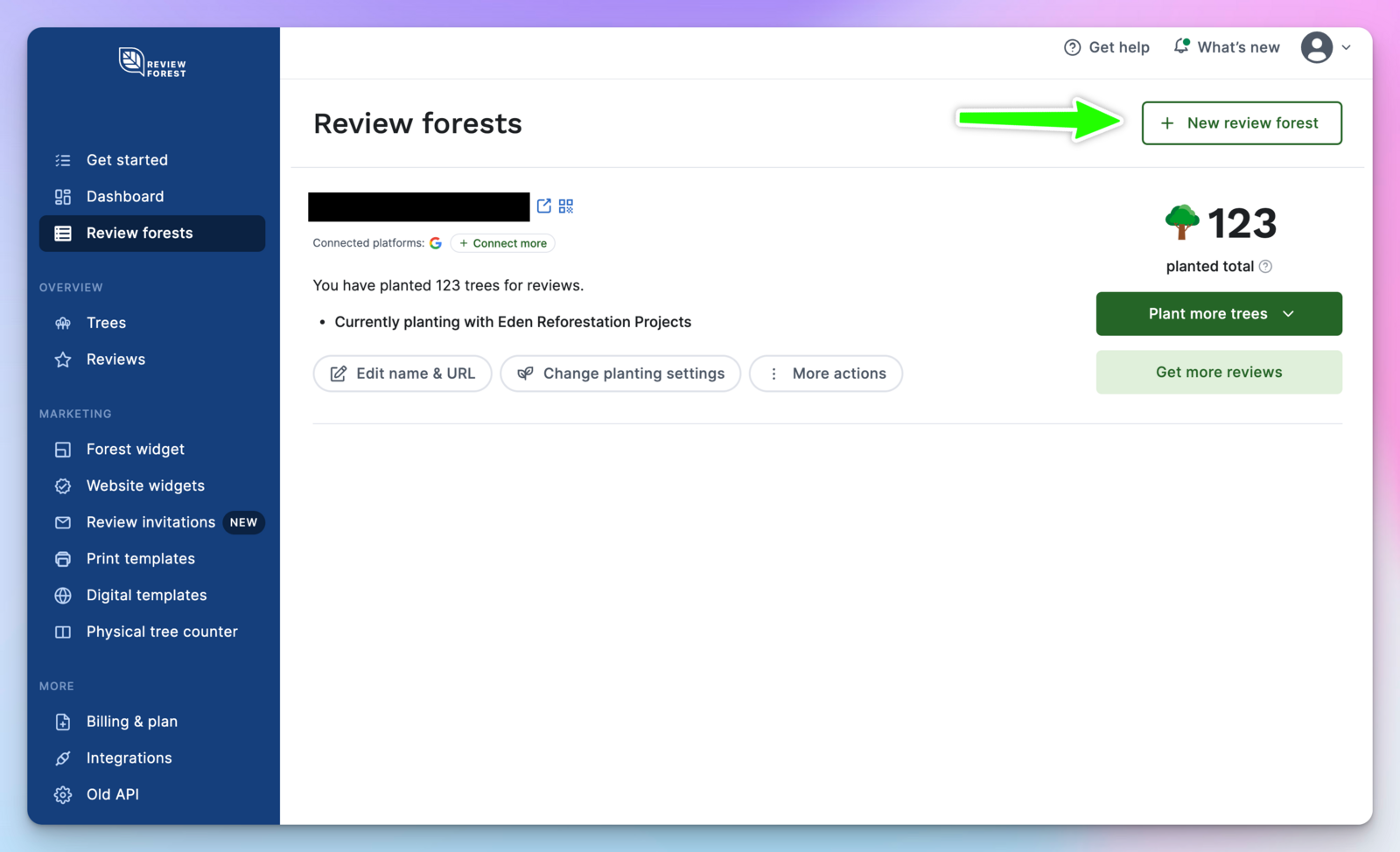
Go to Review forests.
-
Click New review forest.
-
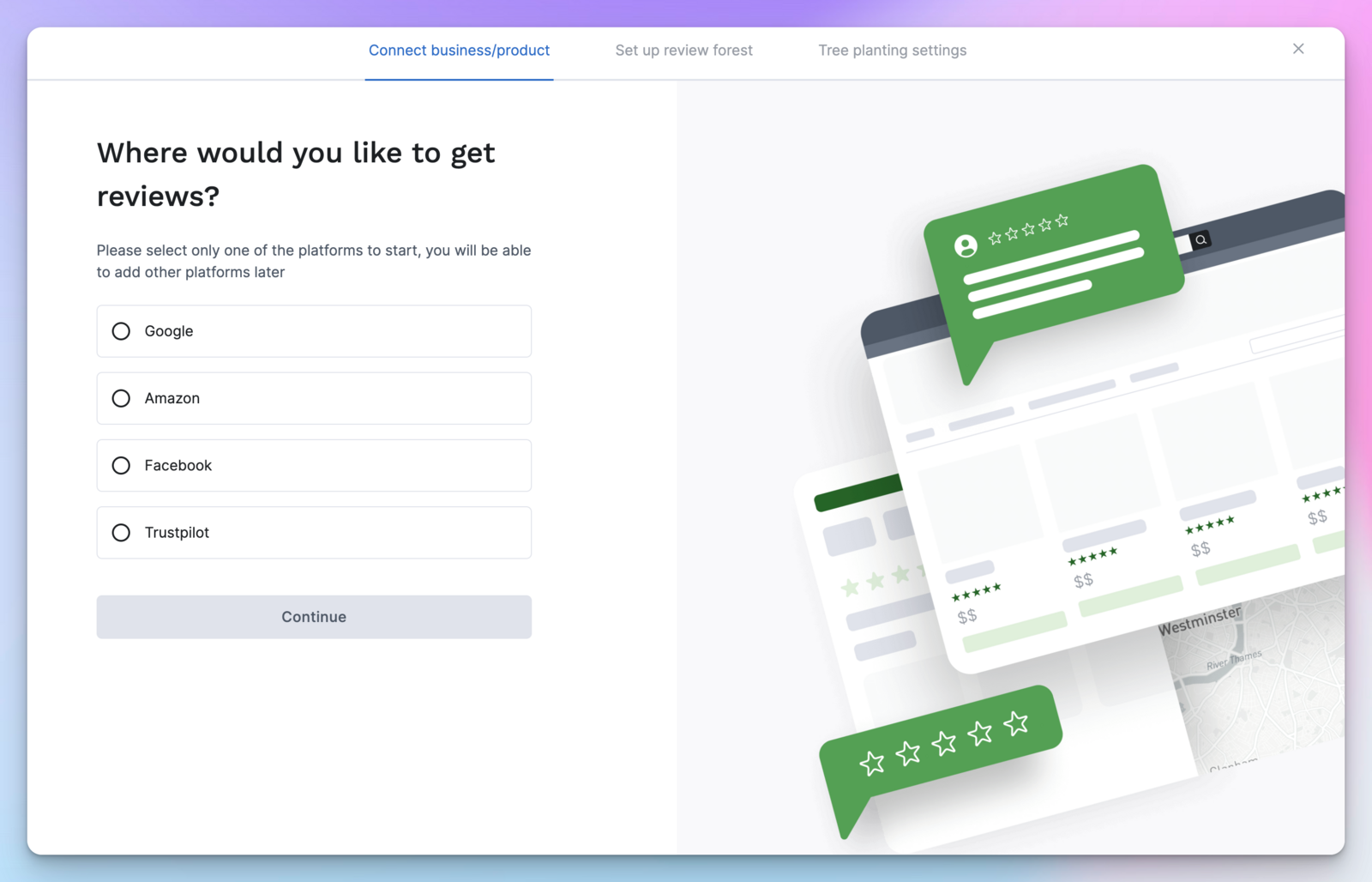
Follow the setup steps, just like with your first review forest.