
How the tree certificates work
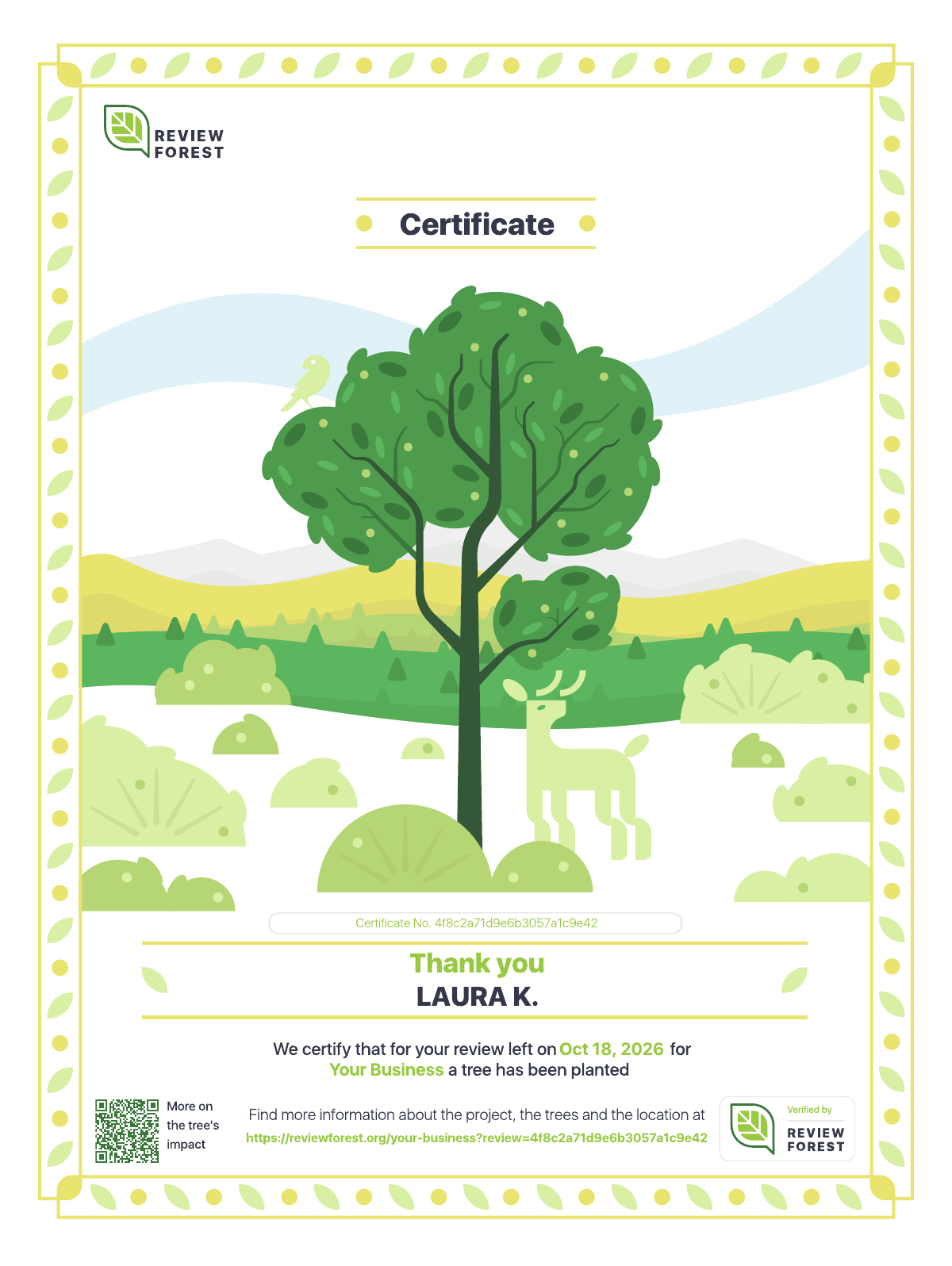
ReviewForest creates a PDF tree certificate for every tree that has a name. The certificate shows that name, your review forest and a QR code that leads to the tree in your review forest.
Who gets a certificate automatically
Section titled “Who gets a certificate automatically”- Reviews through ReviewForest Direct: if the reviewer enters their name and ticks Send me my tree certificate via email, the certificate arrives by email as soon as they’ve confirmed their review. You don’t need to do anything.
- Reviews on Google and other platforms: these platforms don’t pass on the reviewer’s email address, so we can’t send the certificate. You can let reviewers download it from your review forest page, or send it yourself.
Let reviewers download it from your review forest page
Section titled “Let reviewers download it from your review forest page”With one setting, reviewers can download their certificate straight from your review forest page. It’s the easiest way to get certificates to your customers: just let them know they can come back to your review forest once their review has been published. The setting is off until you turn it on.
-
Go to Review forests.
-
On the review forest, click Manage and then Manage display settings.

-
Turn on Allow downloading tree certificates.
-
Click Save changes.

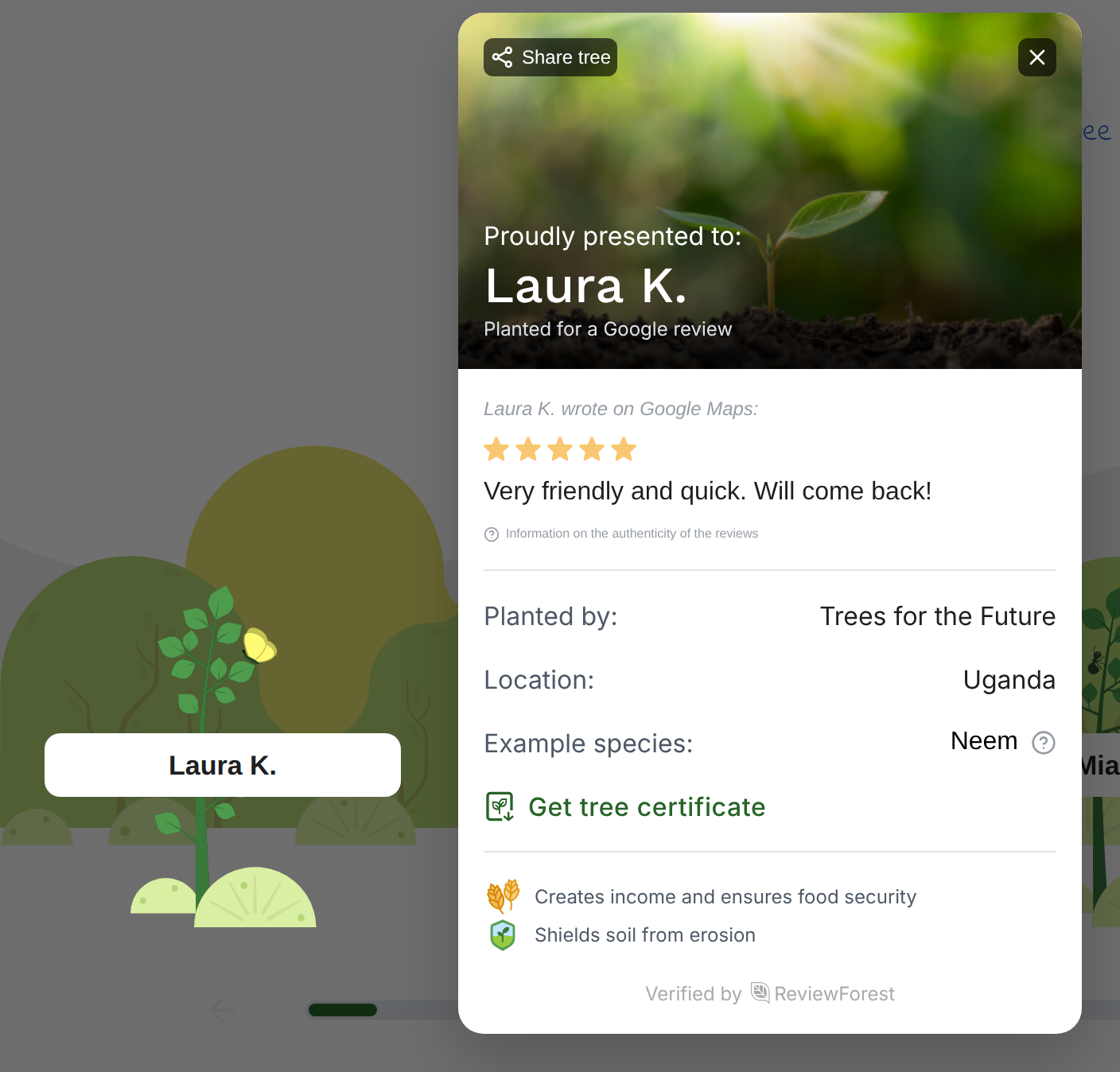
After that, reviewers click their tree on your review forest page. The tree details show Get tree certificate, which downloads the PDF.
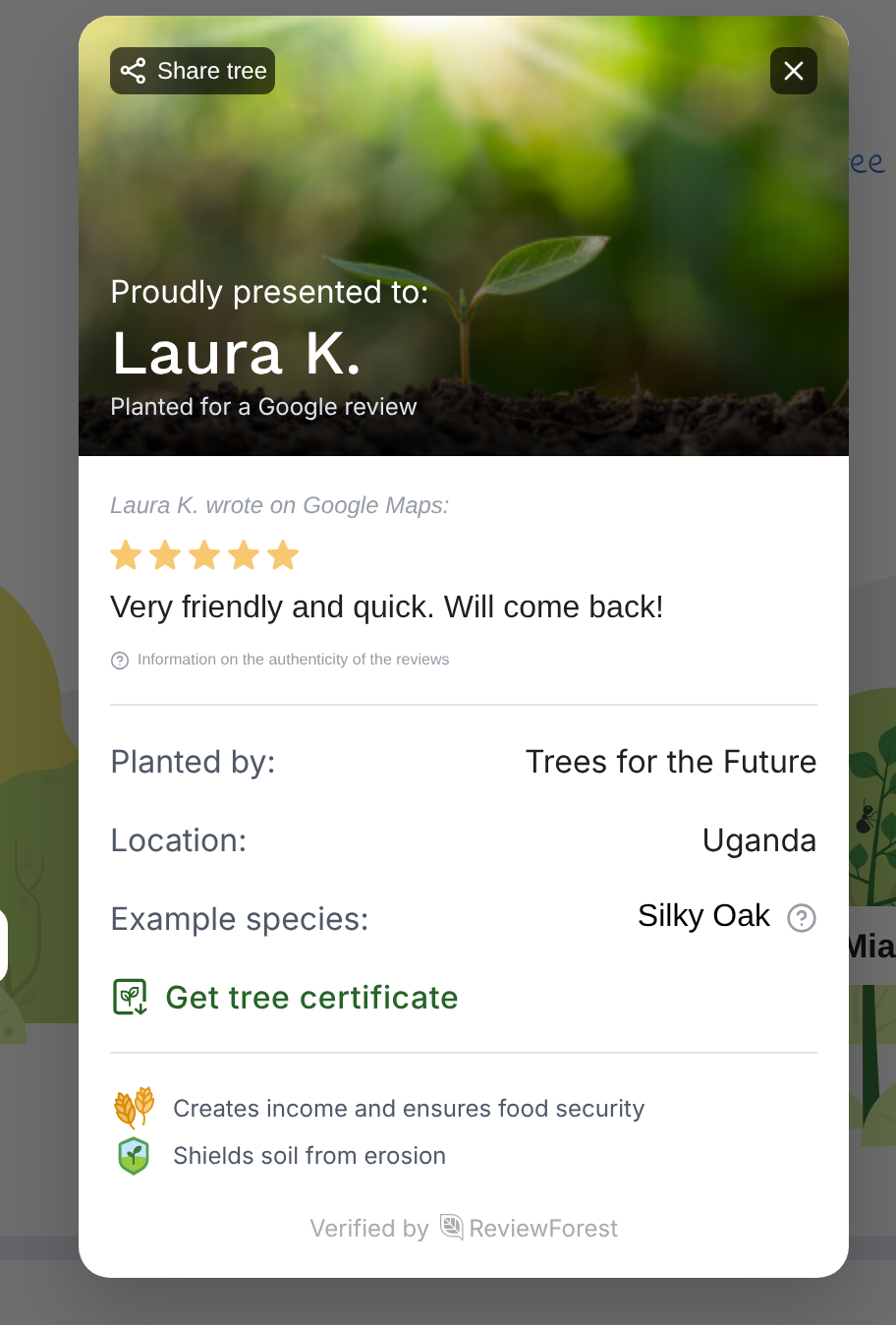
The link appears for every tree that has a name, as long as your subscription is active and the tree’s invoice has been paid. So anyone visiting your review forest page can download these certificates. The FAQ at the bottom of every review forest page also tells reviewers where to find theirs.

Download a certificate yourself
Section titled “Download a certificate yourself”-
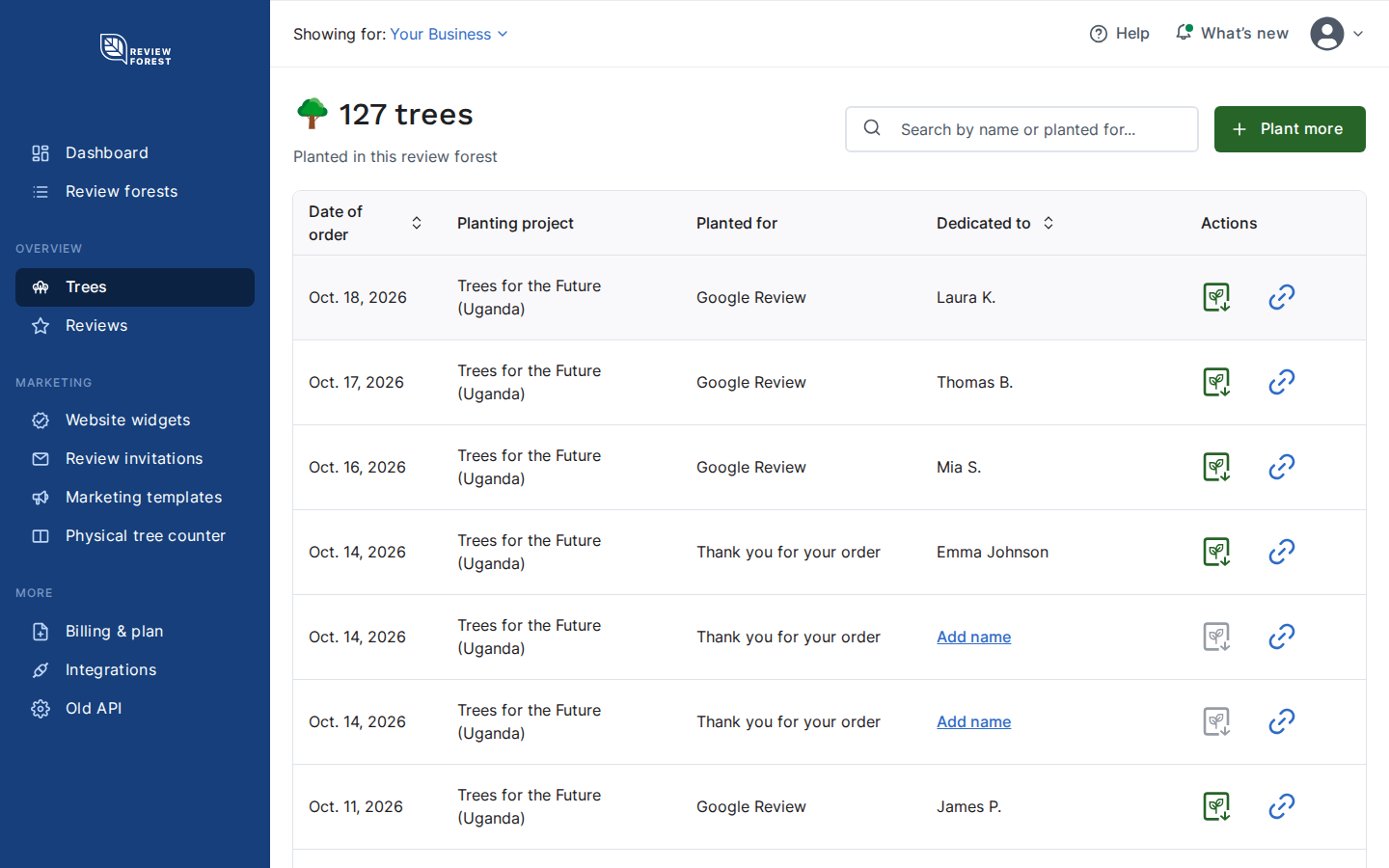
In your account, go to Trees.
-
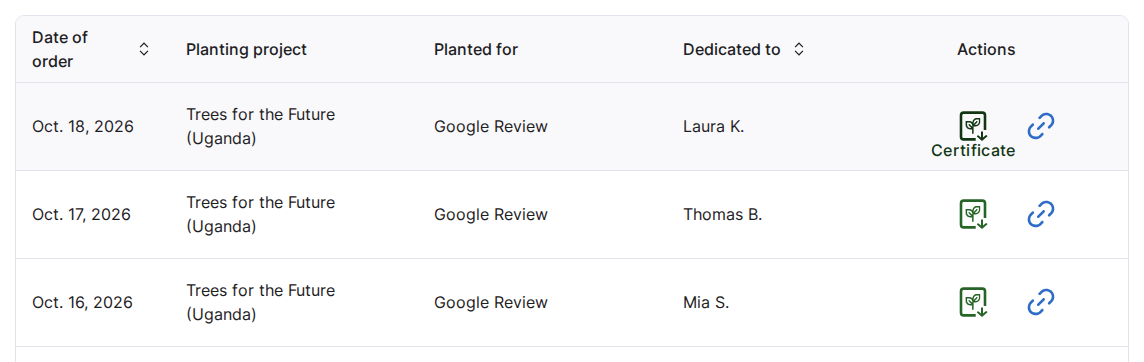
Click the certificate icon next to the tree. The PDF downloads.
-
Want to share the tree instead? Click the link icon next to it (Link to tree). This copies a link that opens your review forest with the tree highlighted. The QR code on the certificate leads to the same tree.
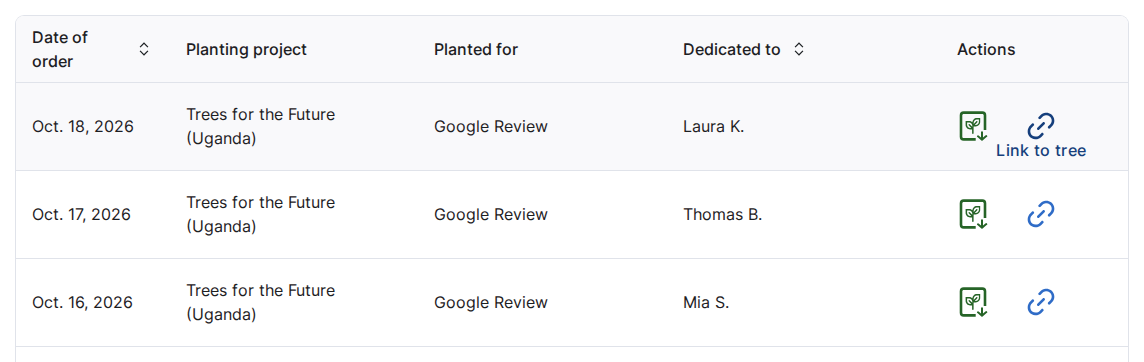
If the certificate icon is grayed out, hover over it to see why:
- The tree doesn’t have a name yet. For additional trees, add one on the Trees page with Add name. Review trees get the name the reviewer used on the platform.
- You’re in a trial period. Certificates for review trees become available once the trial has ended.
Send the certificate to a customer
Section titled “Send the certificate to a customer”Find the reviewer by the name they used on the platform, download the certificate and email it to them. You can adapt the template below. We’d ask you to send the certificate digitally rather than print it.
Dear [customer name],
Thank you very much for taking the time to review us on [review platform]. As a small thank-you, your review plants a tree: together with ReviewForest, we've added a tree in your name to our review forest, and [planting partner] plants it in the next planting season.
Your tree certificate is attached. The QR code on it takes you to your tree in our review forest, where you can also find out more about the planting project.
Thank you for your trust in [company name]. We look forward to helping you again.
Best regards,