
Where do I find my invoices?
We email your invoices as PDFs to your billing email address. You’ll also find all of them under Billing & plan, where you can download them any time.
The two regular invoices
Section titled “The two regular invoices”Your subscription comes with two regular invoices:
- Plan fee: billed in advance, either monthly or once a year, depending on your billing cycle. It comes when your subscription starts and each time it renews.
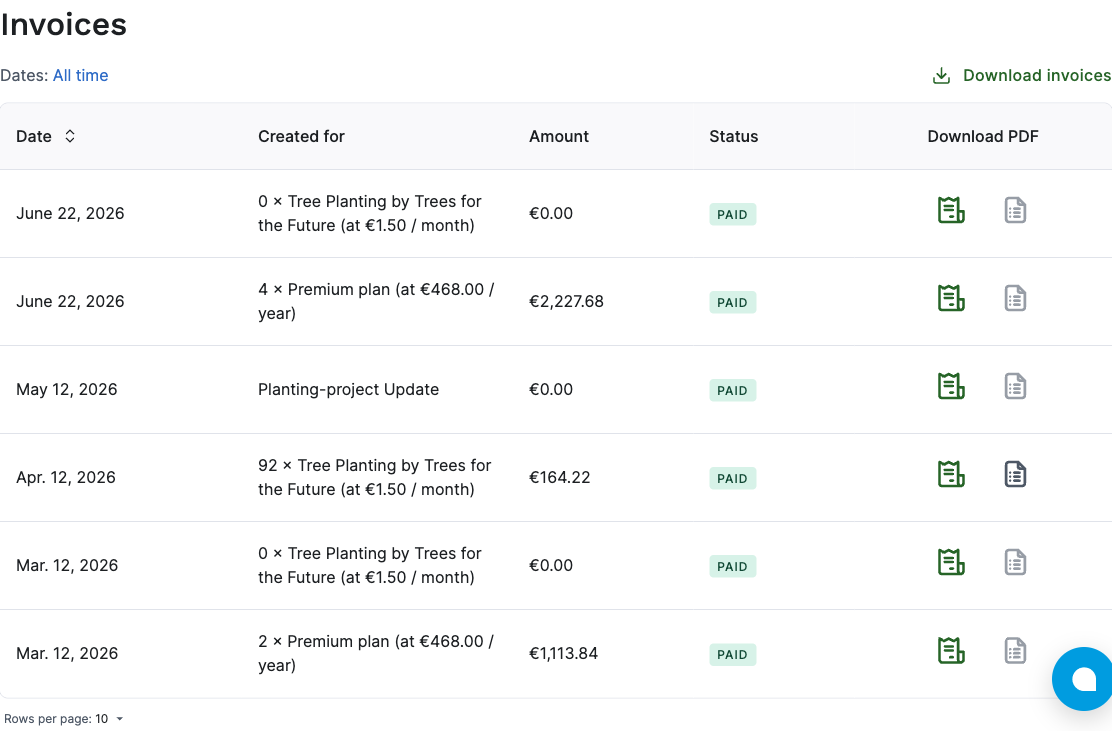
- Trees: billed once a month, afterwards, for the trees planted for your reviews in the month before, together with a breakdown of the reviews they were planted for. If no new trees were planted, the tree invoice comes to 0.00. We don’t email it, and it has no breakdown, but you’ll find it in the list.
So if you pay annually, you get one plan invoice a year and a tree invoice every month. Both can carry the same date. Additional trees you order yourself come on a separate invoice.
Where the invoice emails go
Section titled “Where the invoice emails go”Invoices go to the address under Billing & plan > Billing details > Send invoices to. That can be a different address from your login, for example your accounting team. To change it, see How to change the billing email address.
Missing an invoice email? Check your spam folder and look under Send invoices to for a typo. You can always download any invoice yourself anyway.
Download your invoices
Section titled “Download your invoices”-
Log in and open Billing & plan.
-
Scroll down to Invoices.
-
In the Download PDF column, the first icon (Invoice) opens the invoice. On tree invoices, the second icon (Breakdown) opens the list of reviews you planted trees for.
-
To download several invoices at once, choose a period above the list, for example This year, and click Download invoices. You get a ZIP file with the invoice PDFs. Without a period, the list shows All time, so the ZIP contains every invoice.
If a payment failed, that invoice shows a Pay now to activate link instead of the icons. How to pay it is in Outstanding invoices. A direct debit that’s still being processed needs nothing from you: its invoice shows as open until your bank confirms the payment.
Access for your accountant
Section titled “Access for your accountant”You have two options: enter your accountant’s email address as the billing email, so the invoices go straight to them, or have the account manager invite them as a team member, so they can download invoices themselves, see Team access. Team members can also change your billing details and payment method, so it’s not read-only access.
Invoices in another language
Section titled “Invoices in another language”Invoices come in German or English. To switch, open Account settings and change Email & Invoice Language under Language preferences. It applies to future invoices and to the emails we send your company.