
How to add an email signature to Thunderbird
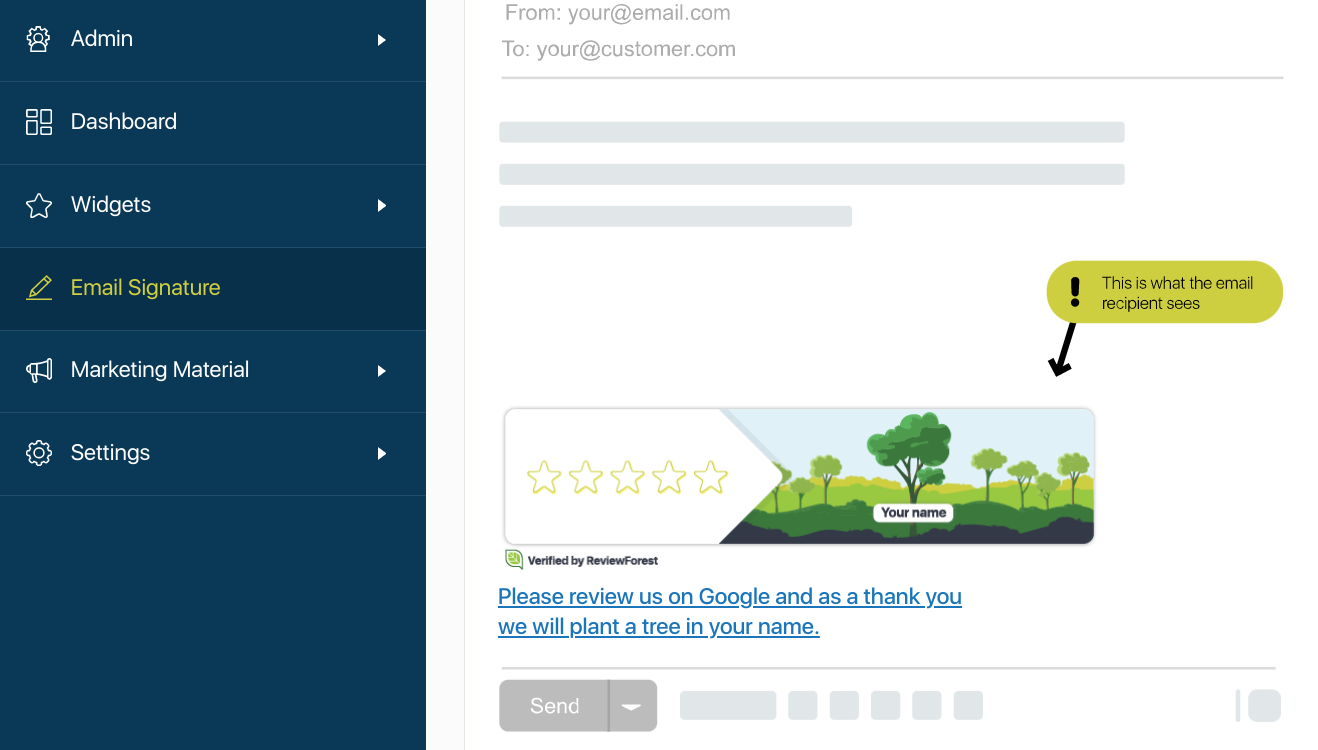
With a ReviewForest email signature, every email you send links to your review forest. Thunderbird needs one extra step: its signature field takes HTML code, not a formatted signature. Here’s how to do it.
1. Create and copy your signature
Section titled “1. Create and copy your signature”-
Log in and open Review invitations under Marketing in the menu on the left. On the Email signature card, click Install email signature.
-
Click Create email signature. If a short explanation appears first, click Try it now. If you already have a signature, click New email signature at the top right, or click the copy icon next to an existing signature in the list and skip to part 2.
-
Choose a template (Graphic, Illustrated or Minimal) and the language. For a German signature you also choose between Formal and Informal address. Under Add dynamic content you can show your review score or your number of planted trees in the signature, except on older plans.
-
Click Copy & save signature. The signature is now on your clipboard and saved in your list.
2. Turn the signature into HTML code
Section titled “2. Turn the signature into HTML code”-
Open the free online editor html-online.com/editor.
-
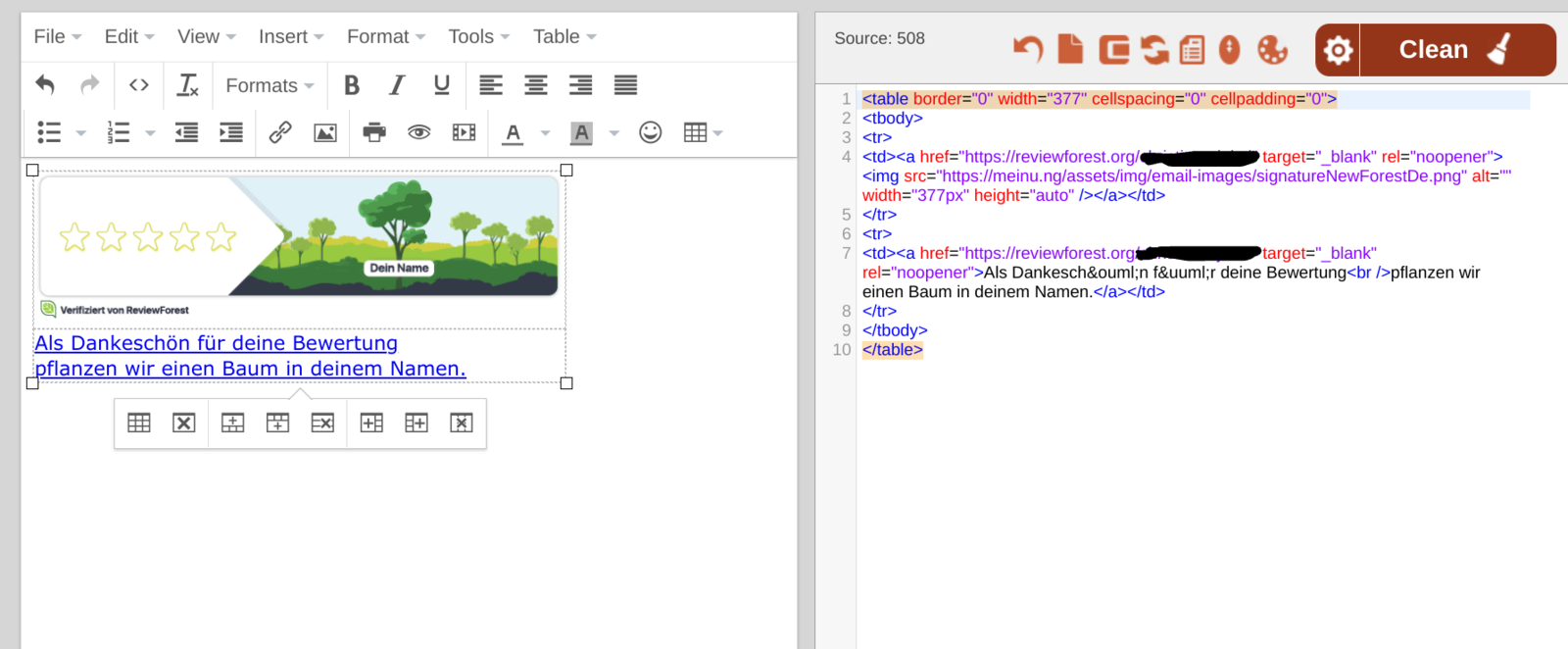
Delete the sample text in the left field and paste your signature there. The HTML code appears in the right field.
-
Select all the code in the right field and copy it.
3. Add the signature to Thunderbird
Section titled “3. Add the signature to Thunderbird”-
Open the Thunderbird menu (the three lines at the top right) and choose Account Settings.
-
In the left column, click your email account, the top entry with your address.
-
Tick Use HTML below the Signature text field.
-
Paste the HTML code into the Signature text field.
Thunderbird saves the change right away. From now on the signature appears under every new email from this account. Write yourself a test email to check how it looks.