
Send review invitations by email and SMS
From the app you can ask your customers for a review by email or SMS. Each invitation contains the link to your review forest, where your customer leaves a review and a tree gets planted for it. You can send to one person or to a whole list at once.
Before you start
Section titled “Before you start”- Active subscription: sending invitations requires an active ReviewForest subscription. If your account is still on an older plan we no longer offer, the app first suggests switching to a current plan.
- Consent: only invite customers who agreed to receive messages from you. With the Send invitations button you confirm that.
- Optional for email: under Legal notice you can add your company details, which then appear in the email. Under Personalization you save your logo for all email invitations. Both apply to the review forest selected at the top, and you’ll find them as tabs on the email invitations page.
Send email invitations
Section titled “Send email invitations”-
Open Review invitations under Marketing in the menu on the left.
-
On the Sending email invitations card, click Send email, then Send invitations at the top right.
-
Language and subject: pick English or German and a subject line. Choose one from the list or write your own, up to 70 characters.
-
Content: pick the Formal or Friendly template. Here you can also add your logo for this email, as a .png or .jpg file up to 1 MB. The preview on the right shows what your customer will see. With Send test email you can send it to yourself first.
-
Recipients: enter an email address per recipient, and a name if you like. Add another recipient adds a row. For a longer list, use Import via file, see below.
-
Send now or later: choose Send now or Schedule. When you schedule, you pick a day and a full hour within the next three days. The time is shown in your computer’s time zone.
-
Click Send invitations.
The email comes from ReviewForest, from the address noreply-invite@reviewforest.org, and is about your business. Replies to it don’t reach you.
Send SMS invitations
Section titled “Send SMS invitations”-
Open Review invitations under Marketing in the menu on the left.
-
On the Ask for reviews via text message card, click Send SMS, then Send invitations at the top right.
-
Settings: pick the language and the Formal or Friendly template. Under Edit included company name you set the name that appears in the text, up to 35 characters. Under Edit sender you set the name the SMS comes from, up to 11 characters. Some countries don’t allow a custom sender, including Belgium, Canada, Hungary and the USA. With Send test SMS you can try it on your own phone.
-
Click Next: add recipients and enter a phone number per recipient, and a name if you like. Or import a list with Import via file.
-
Click Send invitations. SMS go out right away; they can’t be scheduled.
Your free SMS
Section titled “Your free SMS”Each review forest includes a number of free SMS per billing month:
| Plan | Free SMS per month |
|---|---|
| Standard | 10 |
| Premium | 50 |
| Professional | 100 |
Every further SMS costs 0.15 € (US$0.15 if you pay in dollars) and is billed monthly. The SMS invitations page shows how many free SMS you have left this month, and the send dialog warns you before you go over.
Import a list from a file
Section titled “Import a list from a file”With Import via file you upload your recipients as a CSV or Excel file (.csv, .xlsx or .xls). The dialog offers an example file for each format. The easiest way to start is to fill in one of those.
- First row: column names. For email the column is called
email, for SMSnumber, plusnameif you like. Common alternatives are recognised too, for exampleE-Mail,Email address,Phone,Mobile,TelefonorFirst name. - Phone numbers with country code: write
+44 7700 900123or44 7700 900123. Numbers without a country code, like07700 900123, and numbers starting with00don’t work in a file. - Only the first sheet of an Excel file is read.
- Up to 2,000 recipients per send.
- SMS lists: rows without a phone number are left out, and names longer than 35 characters are shortened. Check the number of contacts added after the import.
After the import, the app marks rows that need a fix, for example a missing or invalid email address, a duplicate, or a name longer than 35 characters. Correct or delete those rows, then continue.
Repeat invitations and unsubscribes
Section titled “Repeat invitations and unsubscribes”So that nobody gets the same invitation too often, ReviewForest checks every send:
- Listed twice: the app marks rows that repeat an address or number. Remove them before you continue.
- Invited recently: recipients who got an invitation from this review forest within a set period are skipped. Before sending, the app shows who that is and when they were last invited. You decide: send to them anyway or skip them.
- Unsubscribed: people who unsubscribed through the link in an invitation email get no more invitation emails from this review forest.
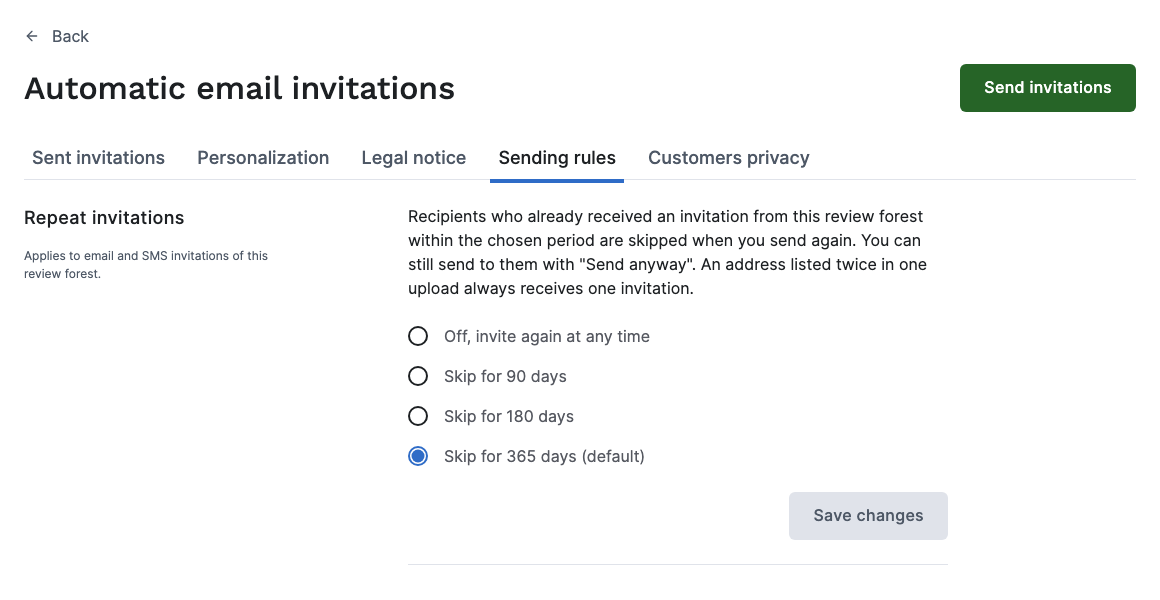
You set the period on the Sending rules tab, in the Repeat invitations section: 90, 180 or 365 days, or Off, invite again at any time. The default is 365 days. The setting applies to email and SMS of the selected review forest.
After sending
Section titled “After sending”The Sent invitations tab lists every invitation with its status. What the statuses mean: Statuses of email and SMS invitations. The Customers privacy tab deletes the data of all customers you invited from this review forest, on the email page for email and on the SMS page for SMS. It can’t delete single people. Afterwards the app also no longer knows whom you invited, so Repeat invitations can’t skip them anymore. If one customer asks you to delete their data, write to us.
Would you rather send invitations automatically from your CRM or shop system? See Automate your review requests with the ReviewForest API.