
Physical tree counter: how to buy and set it up
The physical tree counter shows the number of trees in your review forest, in your shop, office or reception. It works with a brand forest too. The counter is made by Smiirl. Once it’s connected, ReviewForest sends it the new number automatically whenever your tree count changes.
How to order
Section titled “How to order”You order the counter directly from Smiirl. As a ReviewForest customer you get 10% off. To get the discount, use this link: https://www.smiirl.com/en/store/cart/reviewforest
-
Choose the custom counter, the one that shows a number of your choice, and add it to your cart.
-
In the cart, make sure the promo code REVIEWFOREST is applied.
-
Click Edit logo on the counter in your cart.
-
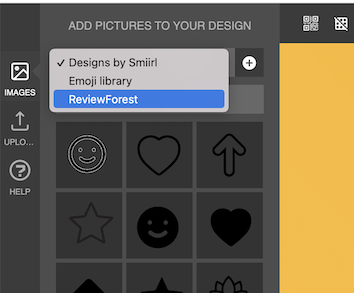
Choose Images in the menu on the left. Instead of Designs by Smiirl, choose ReviewForest.
-
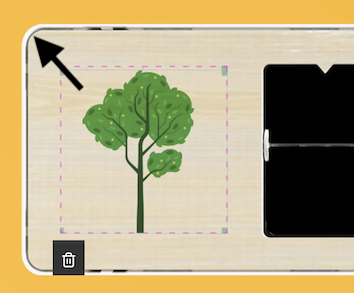
Drag the tree illustration onto the counter.
-
Make it bigger until it fills the box.
-
Confirm the design with the checkmark at the top right.
-
Click Proceed and enter your details to complete the order.
How to connect the counter to your review forest
Section titled “How to connect the counter to your review forest”Once your counter has arrived, you connect it with a setup method called Push Number.
If you prefer videos, watch this one and then continue with step 5 below:
If you prefer text, follow these steps:
-
Go to smiirl.com/start and sign up. This account is separate from your ReviewForest account, so you need to create a new account.
-
Click Install.
-
Enter the ID of your counter. It’s on the back of the counter and in the user guide.
-
Follow the instructions to connect the counter Via WiFi or Via Ethernet.
-
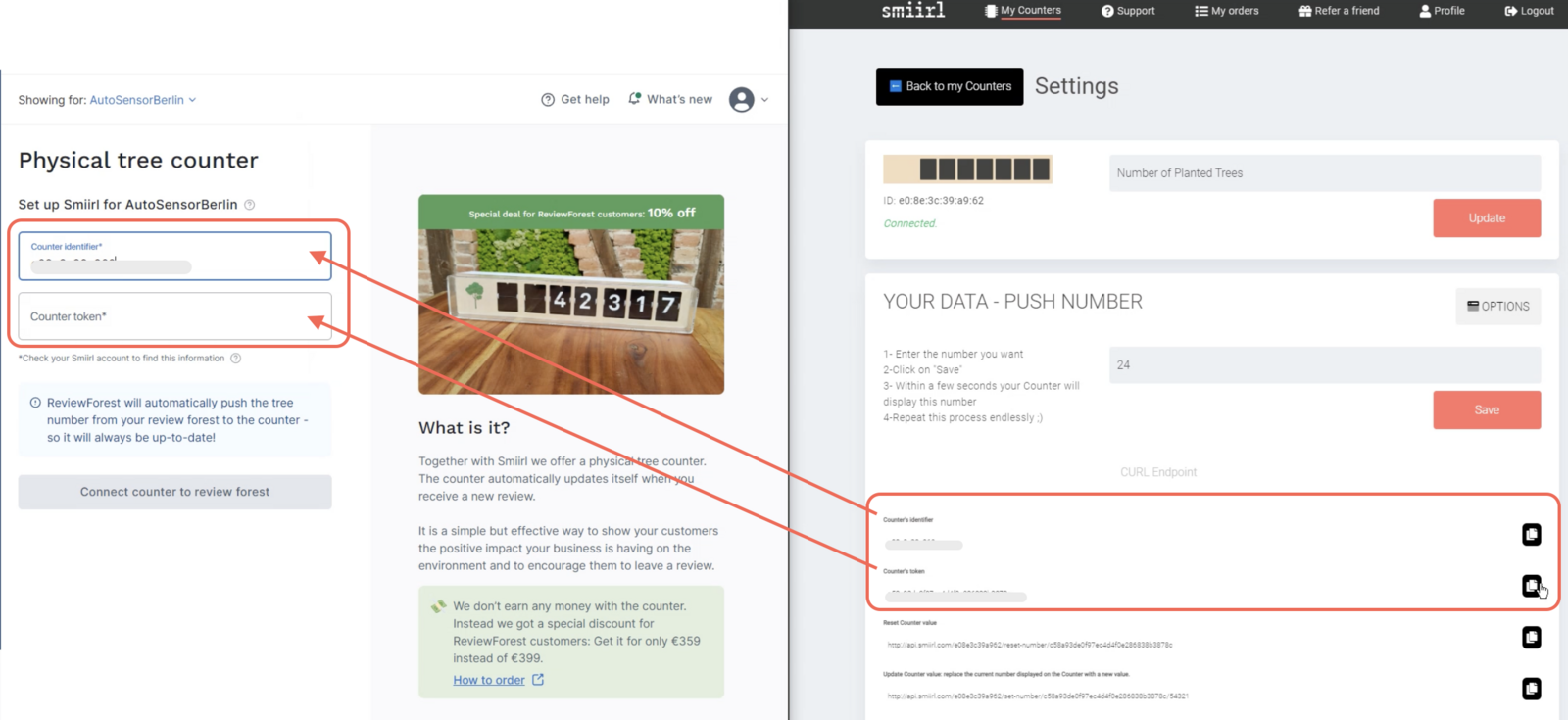
Once the counter is online, connect it to your review forest. It’s easiest to have the ReviewForest app open in a second browser window, so you can copy the data from Smiirl into ReviewForest.
-
In the ReviewForest app, open Physical tree counter under Marketing in the menu on the left.
-
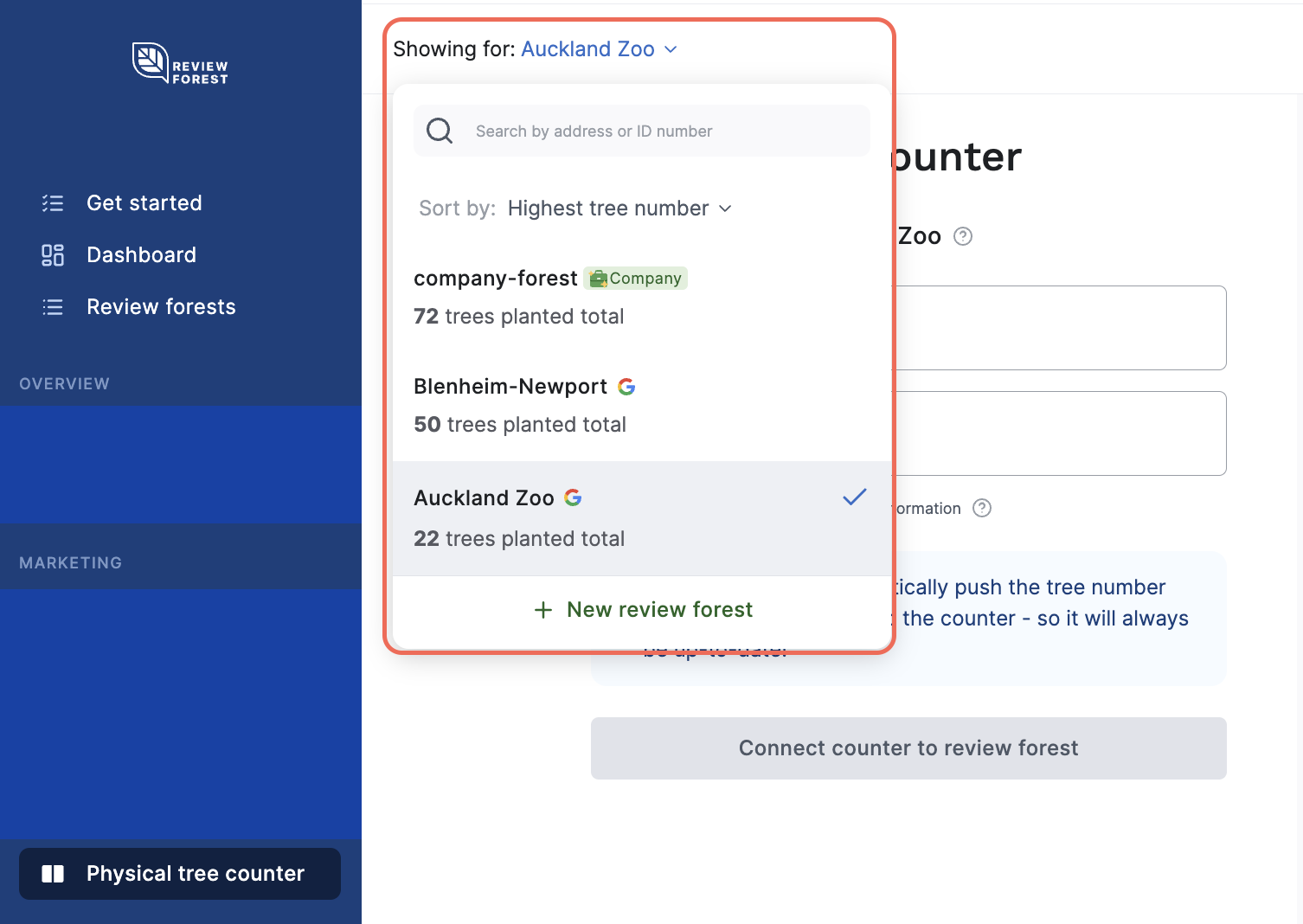
At the top, select the review forest you want the counter to show. A counter shows one review forest.
-
In your Smiirl account, go to My Counters, click Settings for your counter and then Options.
-
Click the Push Number icon, the curved arrow.

-
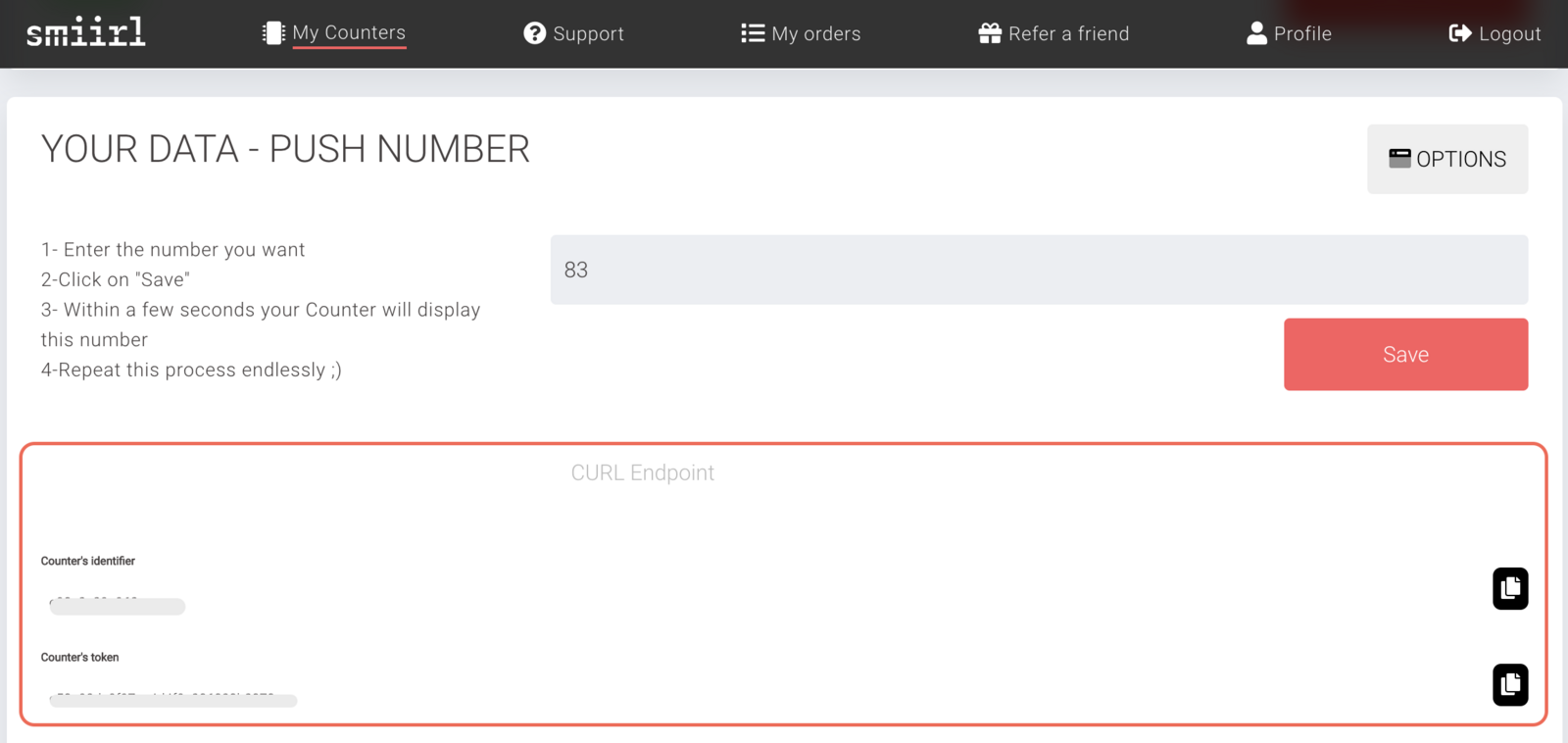
Below CURL Endpoint, Smiirl now shows the counter’s identifier and the counter’s token.
-
Copy both into the ReviewForest app, into the fields Counter identifier and Counter token.
-
Click Connect counter to review forest.
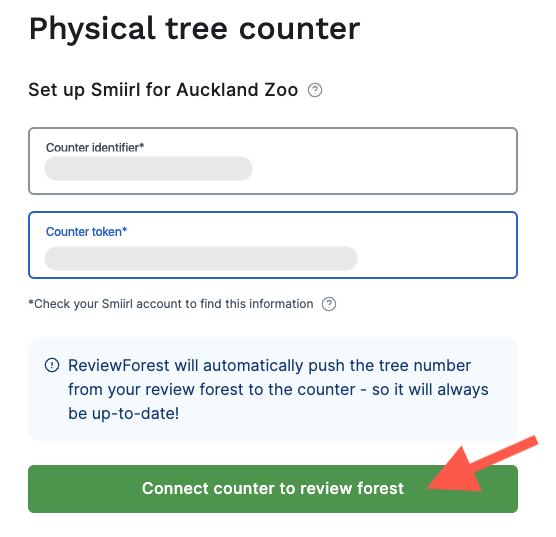
The counter now shows the current number of trees in your review forest and updates itself whenever that number changes.