
How to plant additional trees
Besides the trees for your reviews, you can plant trees whenever you like. Some businesses plant a tree for every sale, as a thank-you to their team or for a company anniversary, others for reviews on a platform ReviewForest isn’t connected to. These trees appear in your review forest just like the others.
Step by step
Section titled “Step by step”-
Go to Review forests.
-
On the review forest you want, click Plant more trees and then Additional trees. If a short introduction opens first, continue with Let’s plant more trees!
-
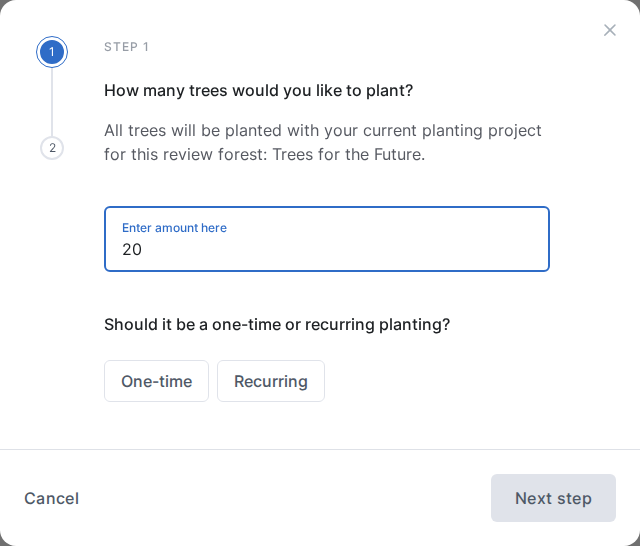
Enter how many trees you want to plant, between 1 and 1,000 per order. All trees go to the planting project of this review forest.
-
Choose One-time or Recurring. For recurring planting, also choose Monthly or Yearly. The box below shows what you’ll be charged. Then click Next step.
-
This step is optional. You can enter an occasion and dedicate the trees to people, see below.
-
Click Confirm & pay. If you left the optional step empty, the button says Skip & pay.
What you’re charged
Section titled “What you’re charged”- One-time: you get a separate invoice for the trees straight away.
- Recurring: the first trees are charged straight away, on a separate invoice. After that, the same number of trees is planted and charged every month or every year.
Occasion and names
Section titled “Occasion and names”In the optional step, you can enter an occasion of up to 35 characters, for example “Thank you for your order”. You can also dedicate trees to people: type the names one by one, add several at once with Try bulk adding, or upload an Excel or CSV file with Import via file. Each name can have up to 35 characters.
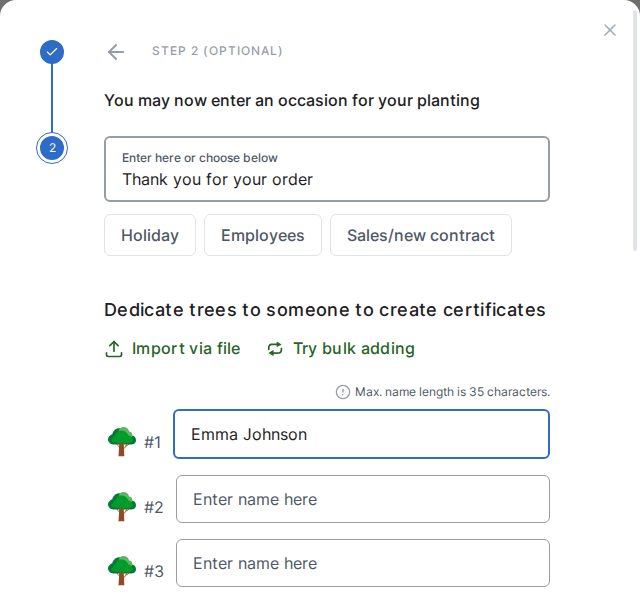
Name and occasion are public: both appear with the tree on your review forest page, and the name is also on the tree certificate.
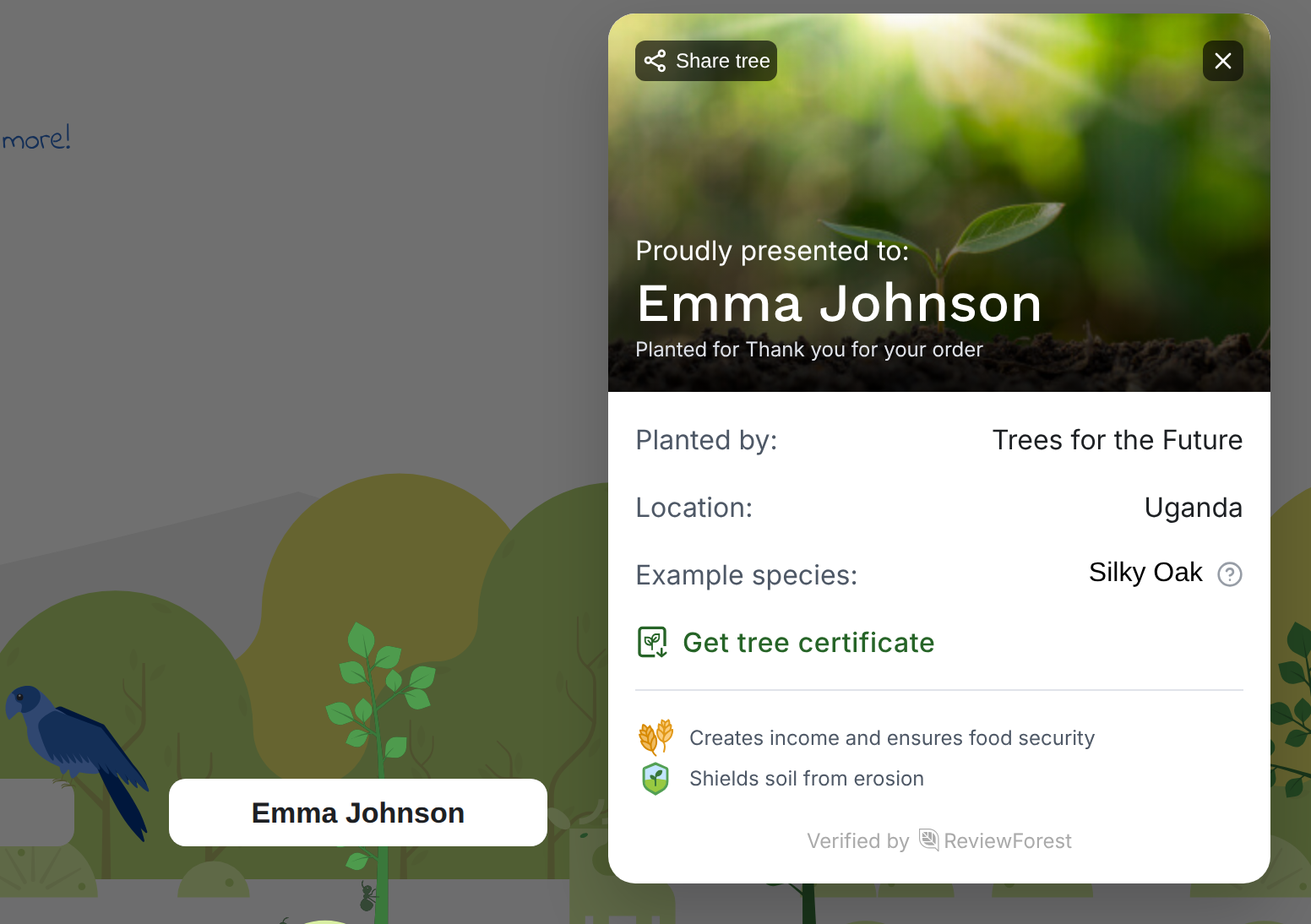
With recurring planting, names and occasion only apply to the first trees. The trees of later months or years come without a name, and you can dedicate them afterwards.
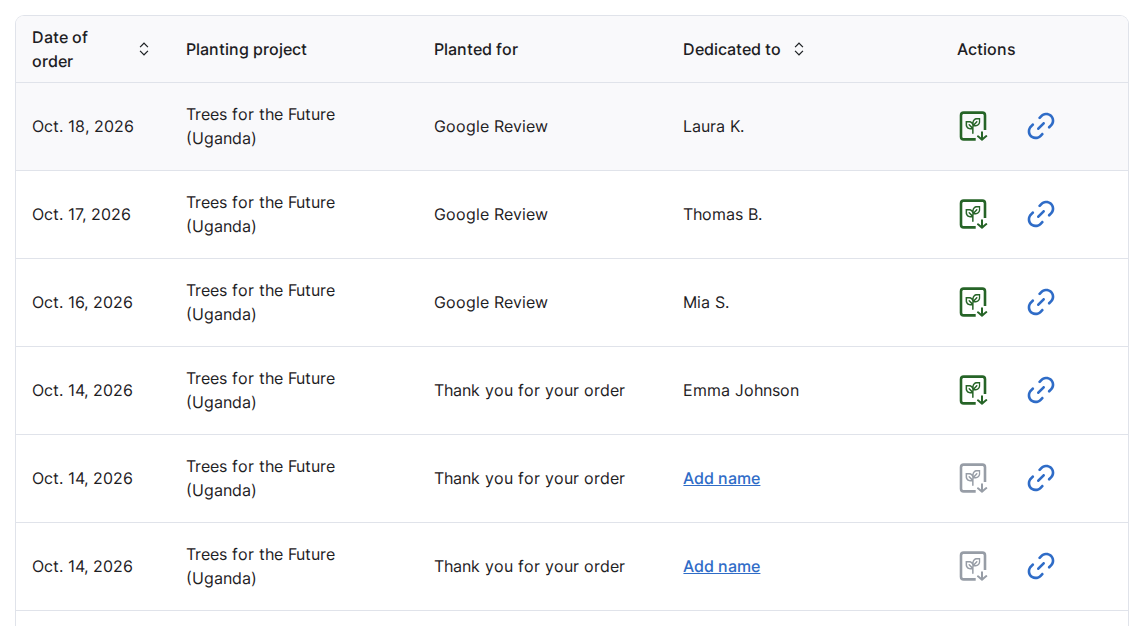
You can also add a name or an occasion later. In your account, go to Trees and click Add name or Add occasion next to the tree. You can add a name only once. After that, it can’t be changed.
Tree certificate
Section titled “Tree certificate”A tree certificate is only available once the tree has a name. You download it on the Trees page. How the tree certificates work has the details.
Stop recurring planting
Section titled “Stop recurring planting”- Go to Review forests.
- On the review forest, click Manage and then Stop additional planting.
- Confirm with Stop planting.
From then on, no more trees are planted or charged. The trees you’ve planted so far stay in your review forest. You can set up recurring planting again at any time.
Each review forest can only have one recurring planting at a time. While it’s running, you can still order one-time trees.