
Activate or reactivate your ReviewForest subscription
You activate ReviewForest yourself in your account, whether it’s your first time or you’re coming back after a cancellation. You don’t need to contact us for it. Which way is right depends on where you are:
| Your situation | What to do |
|---|---|
| You signed up but never chose a plan | Activate for the first time |
| You cancelled, but the end date hasn’t come yet | Revoke the cancellation |
| Your subscription has ended | Reactivate it |
| A red bar at the top asks you to pay | Pay the open invoice |
| Only one of your review forests is inactive | Activate that forest |
Activate for the first time
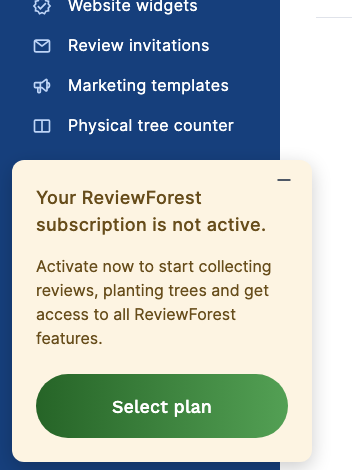
Section titled “Activate for the first time”Right after you sign up, your account isn’t activated yet. You can look around, but no trees are planted, and your forest page says “This forest is inactive.” At the bottom left of your dashboard there’s a box saying Your ReviewForest subscription is not active.
-
Click Select plan in that box. You’ll find the same button under Billing & plan.
-
If you have more than one review forest, choose the ones you want to activate and click Continue.
-
Choose monthly or annual billing, then click Select plan on the plan you want.
-
Enter your name or company name, your email address, your billing address and your payment method. If your business is in an EU country other than Germany, you can add your VAT ID too. Got a voucher? Enter it under Have a promo code? and click Apply. Apply a voucher during activation shows this step in detail.
-
Check the summary and click Finish & pay.
We charge the plan fee straight away. The trees for your reviews come on a separate invoice at the end of each month.
Revoke a cancellation before it takes effect
Section titled “Revoke a cancellation before it takes effect”If you cancelled at the end of your billing period, everything keeps running until that date. Billing & plan shows the cancellation date in red.
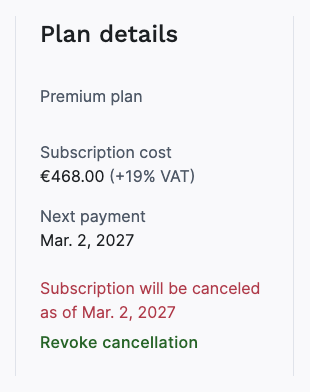
Changed your mind? Click Revoke cancellation right below the date. Your subscription carries on and renews as usual, with the same plan and payment method.
Reactivate after your subscription has ended
Section titled “Reactivate after your subscription has ended”When a cancellation takes effect, all your review forests become inactive. Your account and your forests remain, though, and the trees you’ve planted stay planted. You can come back whenever you like:
-
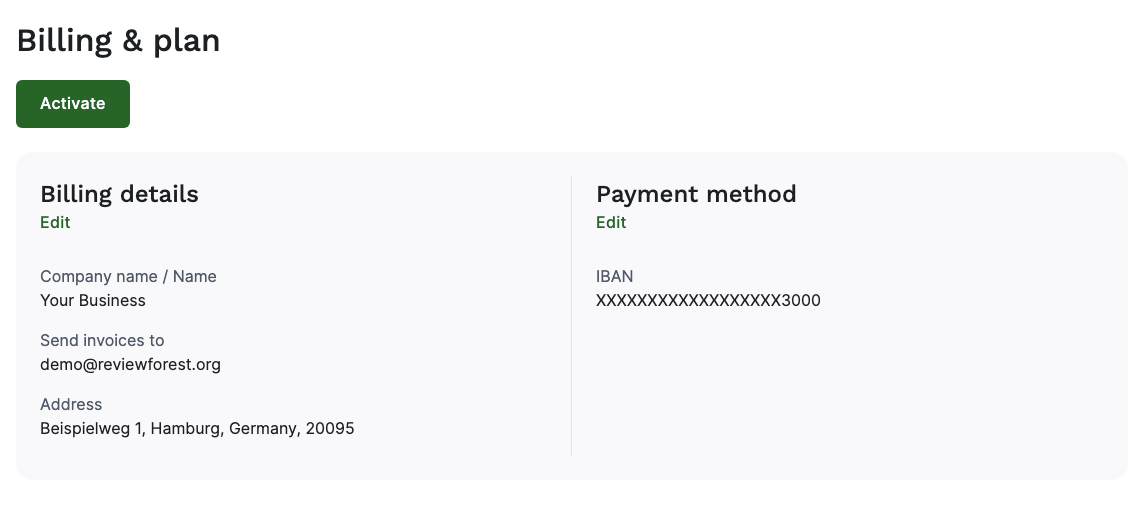
Log in and open Billing & plan. It’s under More in the menu on the left.
-
Click Activate at the top of the page.
-
All your review forests are selected. Deselect the ones you don’t want back and click Continue. The plan price is per business or location, so each forest you keep selected adds to it.
-
Choose a plan and click Select plan.
-
Choose Monthly billing or Annual billing and click Confirm new plan. Annual billing is preselected, so check this before you confirm.
You’ll see Welcome back!, and the forests you selected are active again.
Good to know
Section titled “Good to know”- You pay right away. As soon as you confirm, we charge the plan fee for your new billing period to the payment method saved in your account. To pay with a different card or account, change your payment method first.
- Reviews from your break can still get trees. Once your forest is active again, trees can also be planted for reviews you received while it was inactive, and they’re billed like any other tree.
- Forests you didn’t select stay inactive. You can switch them on later under Review forests, see A single forest was deactivated.
- If you were on a plan we no longer offer, you pick one of the current plans: Standard, Premium or Professional.
- A brand forest comes back only with Professional. With Standard or Premium it stays inactive, and the app tells you so when you pick one of them.
- Regular additional trees don’t restart on their own, because the cancellation ended them. To plant them again, set them up once more, see How to plant additional trees.
- An open invoice comes first. While an invoice is unpaid, Activate takes you to your open invoices instead. Pay it first, see Outstanding invoices.
Stuck somewhere? Write to us in the chat or at mail@reviewforest.org.