
How to change the billing email address
We email every invoice as a PDF to your billing email address. You’ll find it under Billing & plan in the Billing details column, next to Send invoices to. It can differ from the email address you log in with, so you can send invoices straight to your accounting team.
How to change it
Section titled “How to change it”-
Log in and open Account settings.
-
Next to Billing email, click Change.
-
Enter the new address twice and click Change email.
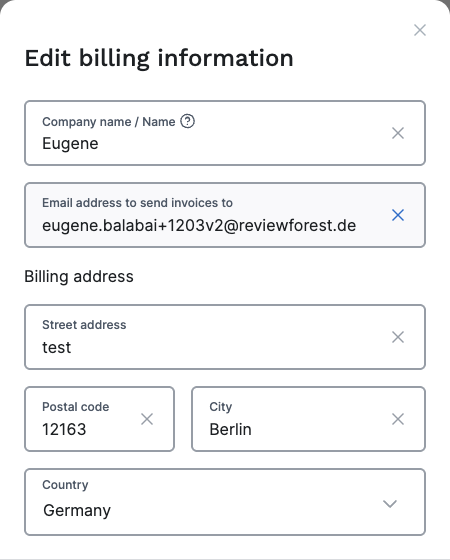
The same field is also in the Edit billing information window under Billing & plan > Billing details > Edit. Saving that window rewrites your whole billing address, though, and removes a second address line if your invoices have one. To change only the email, use Account settings.
What the change affects
Section titled “What the change affects”- Every invoice sent after the change goes to the new address. Invoices you’ve already received aren’t sent again, but you can download them any time under Billing & plan, see Where do I find my invoices?.
- Direct debit pre-notifications and, on an annual plan, the notice before your plan renews go to the new address too.
- Your login stays the same. You still log in with your usual email address.
There’s room for one address. To reach several people, use a shared mailbox or set up forwarding in your email program.
Your accountant needs the invoices?
Section titled “Your accountant needs the invoices?”Enter your accountant’s address as the billing email. Keep in mind that the renewal notice then goes to them as well. If your accountant should download invoices themselves, the account manager can invite them as a team member, see Team access. Team members can also change your billing details and payment method, so it’s not read-only access.