
Upgrade your widgets to Widget V2
Widget V2 is a rebuild of our badge, mini and carousel widgets. Every badge, mini or carousel widget you create today is already a V2 widget. Older widgets can be upgraded in a few clicks, and the code on your website stays the same.
Why upgrade
Section titled “Why upgrade”Faster loading. V2 widgets load a quarter of the code of V1 widgets or less. For the review score badge, that’s about 65 KB instead of 250 KB (uncompressed, measured on the live files in November 2026). If Google PageSpeed ever flagged your ReviewForest widget, V2 helps.
No more style conflicts. Each V2 widget runs in its own sealed-off container (a “Shadow DOM”). Your website’s CSS can’t accidentally break the widget, and the widget’s styles can’t change the rest of your page.
Your own colors. You can adjust the background, text, borders, corners, buttons and stars so the widget fits your brand. See Customize your widget’s colors and style.
Accessibility. V2 widgets come with labels for screen readers and can be used with the keyboard.
Which widgets can be upgraded
Section titled “Which widgets can be upgraded”- Review score badge
- Tree counter badge
- 2 in 1 badge
- Mini review score widget
- Mini tree counter
- Carousel widget
The review forest widget keeps its current version for now. Its row shows version 1.0 and no upgrade link.
How to upgrade
Section titled “How to upgrade”-
In your dashboard, click Website widgets in the menu on the left and switch to the Your widgets tab.
-
Look at the Version column. Widgets that can be upgraded show a green Update to V2.0 link.
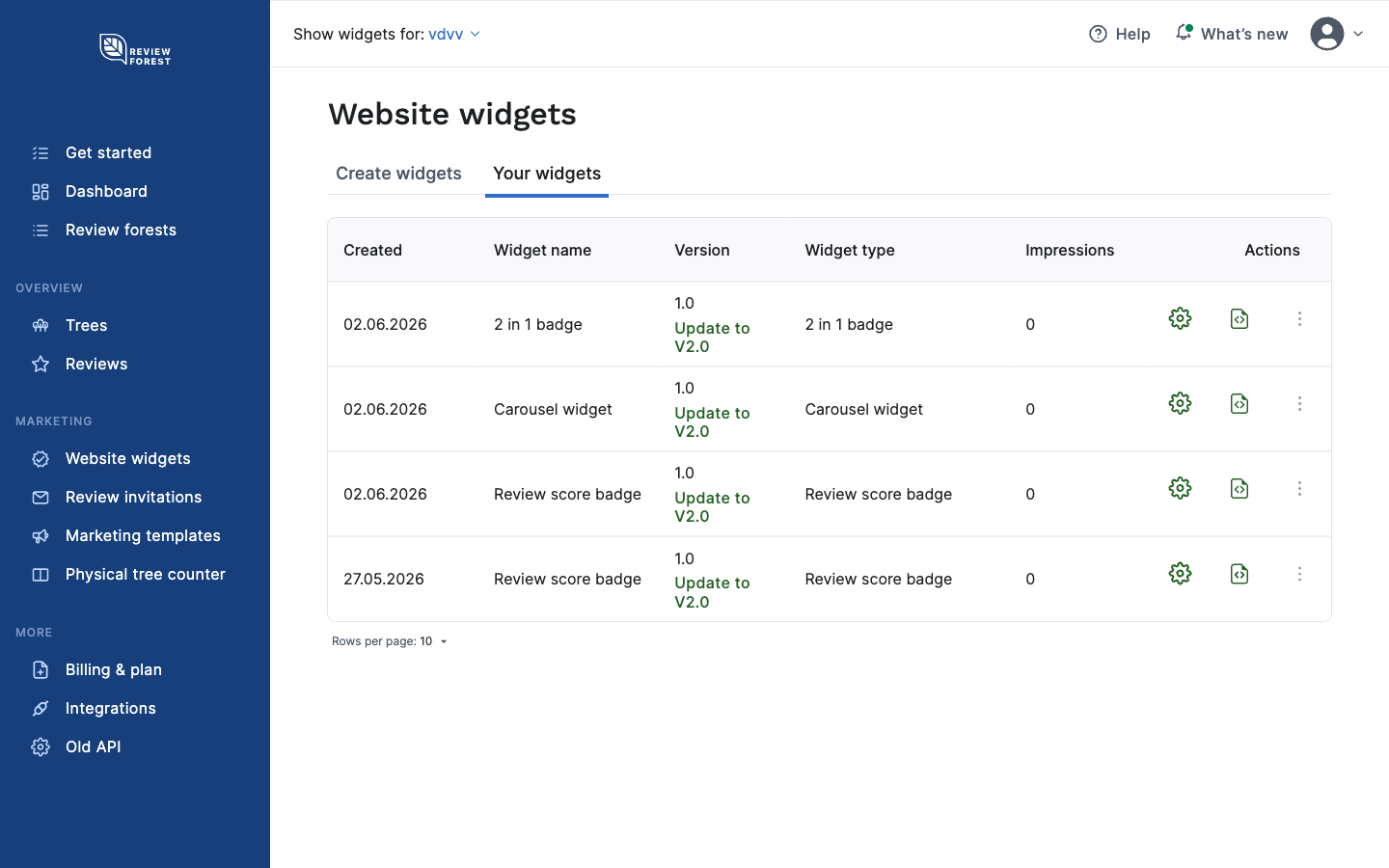
-
Click Update to V2.0. A dialog lists what the update includes.
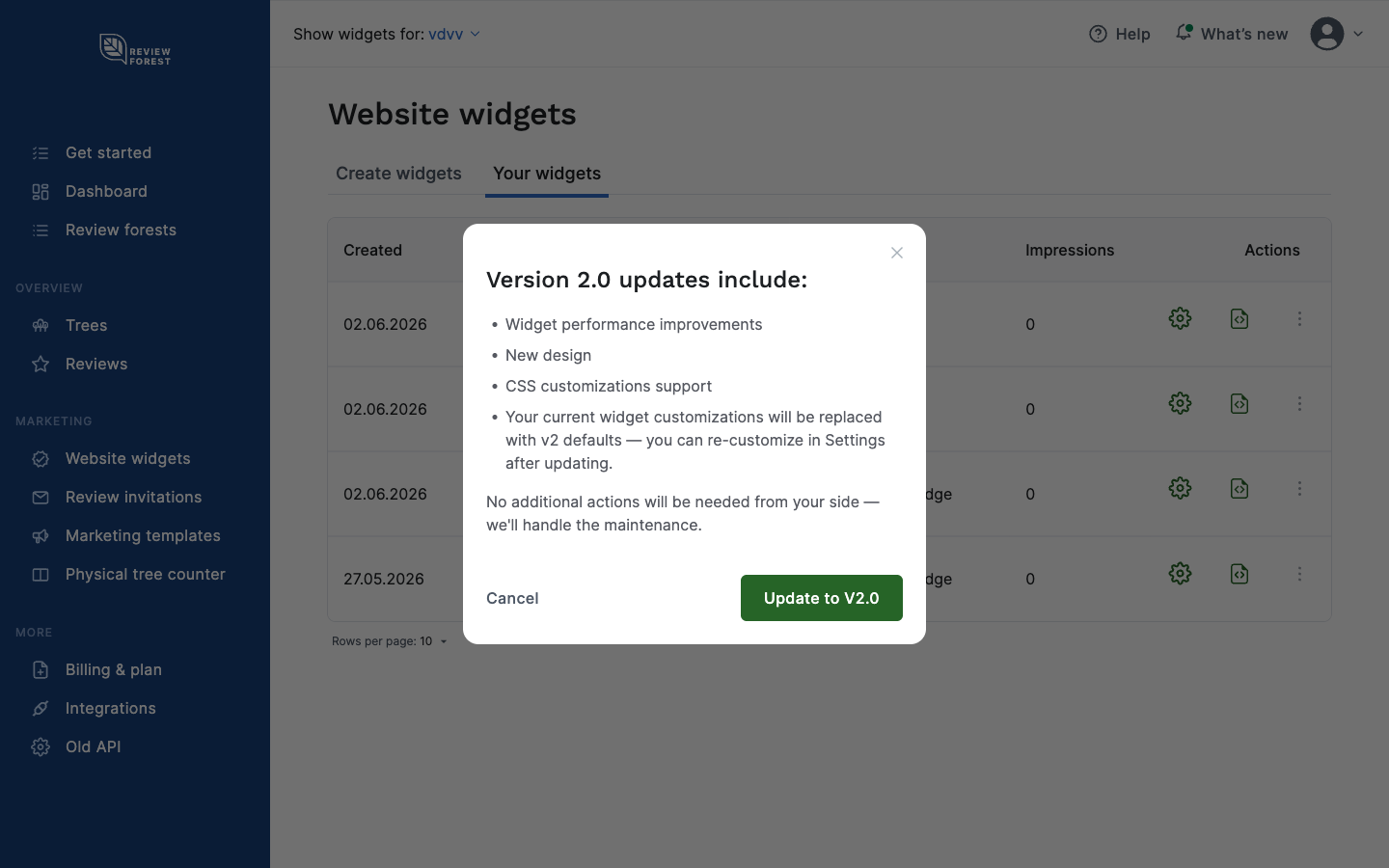
-
Click Update to V2.0 in the dialog to confirm. The widget code on your website stays the same, so there’s nothing to paste again.
What changes for your widget
Section titled “What changes for your widget”The dialog says that your customizations are replaced with V2 defaults. That’s about the look: V2 has a new design, and its color settings start at their defaults. Your other settings stay as they were, for example what the widget shows, whether it floats and in which corner.
Did you change the look of the old widget with your own CSS, on your website or with data-inline-css or data-css-url on the carousel? That CSS no longer reaches the V2 widget, because V2 runs in its sealed-off container. Use the color settings or CSS variables instead.
After upgrading
Section titled “After upgrading”-
Click the gear icon in the widget’s row, in the Actions column.
-
Set your colors in the Appearance step and check the preview next to it.
-
Click Next until the last step, then click Update widget. Your website shows the new look the next time the page loads.
Going back to V1
Section titled “Going back to V1”If something doesn’t look right after the upgrade, you can switch back. Click the three dots in the widget’s row, choose Rollback to V1.0 and confirm. V1 doesn’t show the V2 design and your colors. Your color settings are kept, though, and come back if you upgrade again. If you’re unsure, write to our support team in the chat.