
How do I add the ReviewForest widgets on Strato?
First create your widget in the ReviewForest dashboard and copy its code, as described in Install a ReviewForest widget. How you add it depends on your STRATO website builder. Since June 2024, STRATO’s builder is called SmartWebsite, and the shop SmartWebshop uses the same editor. Websites created before that may still run on the older homepage builder.
The labels below are from STRATO’s German editor.
SmartWebsite and SmartWebshop
Section titled “SmartWebsite and SmartWebshop”-
Open your website in the editor and go to the spot where the widget should appear.
-
Under Inhalte (content), click the red + and choose HTML-Modul. Click Fertig (done).
-
Click the new module, then Code, and paste the widget code.
-
Choose the privacy option that fits your consent setup and click Fertig.
-
Click Veröffentlichen (publish).
The HTML module isn’t part of every STRATO plan. If you can’t find it, ask STRATO which plan includes it.
A floating badge appears on every page where you add the module. If it stays inside the module’s box instead of floating in a corner of the screen, SmartWebsite shows the code in a frame, and a floating badge isn’t possible there. Use a badge with Fixed position or another widget in the module instead.
Older homepage builder
Section titled “Older homepage builder”Floating badge on every page
Section titled “Floating badge on every page”-
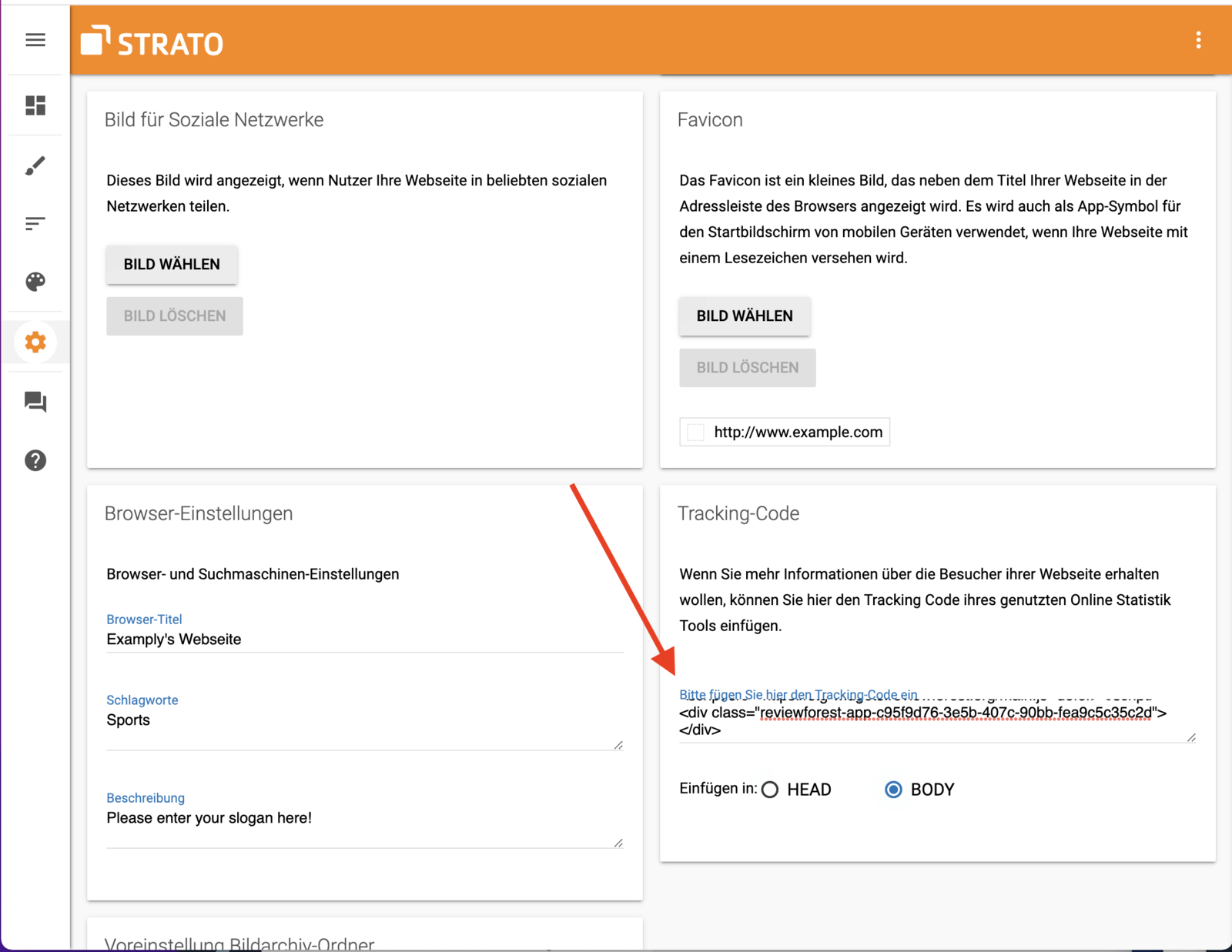
Go to Einstellungen → Allgemein (settings, general).
-
Paste the widget code into the Tracking-Code field. If there’s already code in it, add the widget code below.
-
Under Einfügen in (insert into), choose BODY.
Widget at a specific spot
Section titled “Widget at a specific spot”-
Click Webseite bearbeiten (edit website), then Webseite bearbeiten again at the bottom right, and choose Inhaltselemente (content elements).
-
Under Standardelemente (standard elements), choose Embed and paste the widget code.
This video from 2022 shows these steps. The ReviewForest dashboard in it looks different today.
Webshop Now
Section titled “Webshop Now”STRATO sold its Webshop Now until June 2024. If your shop still runs on it, add the widget code with a Benutzerdefiniertes HTML (custom HTML) element. It’s available on content and category pages, one page at a time.